


Maggie Tsui
Co-founder, CEO of Autoppt. An office software enthusiast committed to improving workplace productivity. I love sharing tips and tools that make daily tasks easier and faster.
Introduction
Creating a presentation from a blank white screen can feel overwhelming. You stare at the empty slide, wondering where to put the title, which colors to pick, and how to make it look professional. This is where templates come in handy. They give you a head start so you can focus on your message instead of struggling with design.
While Google Slides is a free and powerful tool, many people do not know how to find the best designs for it. You might wonder, “Where is the download button?” or “How do I put this design into my presentation?”
In this guide, we will walk you through the simple methods to find, download, and use Google Slides templates. We will also look at how modern tools like Autoppt can take you a step further by generating not just the design, but the content too.
What Is a Google Slides Template and Why Use One?
Google Slides templates are pre-designed files that include layouts, fonts, and colors to help you build presentations faster. Instead of starting with a blank white screen, you use a template to give your slides a professional look immediately. They ensure all your slides look consistent and save you hours of design work.
When you open a new Google Slide, it usually looks very plain. A template changes the “theme” of the presentation. It changes the background, the font style, and where the text boxes sit on the page.
Using a template helps you in three main ways:
-
Consistency: Every slide uses the same colors and fonts, so your presentation looks organized.
-
Speed: You do not have to draw shapes or pick colors yourself. You just type your text into the boxes.
-
Confidence: When your slides look good, you feel better about presenting them to your boss, teacher, or audience.
There are two main types of templates. The first type is built directly into Google Slides. The second type allows you to download files from other websites and import them. We will cover both.
How to Find Free Google Slides Templates in the Official Gallery
You can find free templates directly inside Google Slides without visiting other websites. Simply go to the main Google Slides screen and look at the top row labeled “Template gallery.” Click on it to see various categories like “Personal,” “Work,” and “Education.” Click any design you like, and it creates a new presentation instantly.
This is the safest and fastest way to get a new look. You do not need to download anything to your computer because these templates are already in the cloud.
Step-by-Step Instructions:
-
Open your browser and go to slides.google.com.
-
Log in with your Google account if you aren’t already logged in.
-
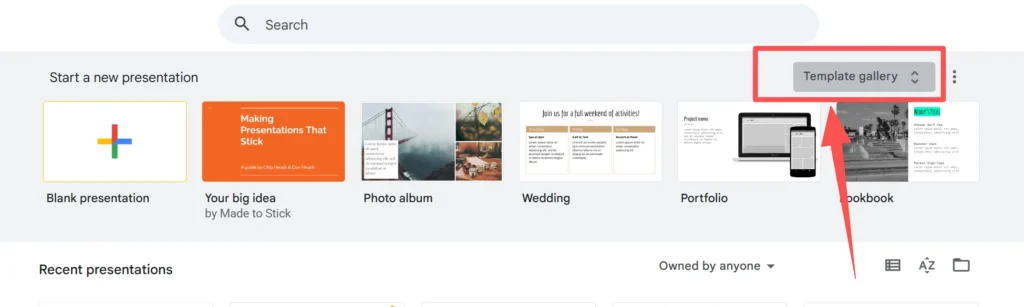
Look at the top of the screen. You will see a gray bar labeled “Start a new presentation.”
-
On the right side of that bar, you will see a button that says “Template gallery” (it usually has two small arrows pointing up and down). Click it.
-
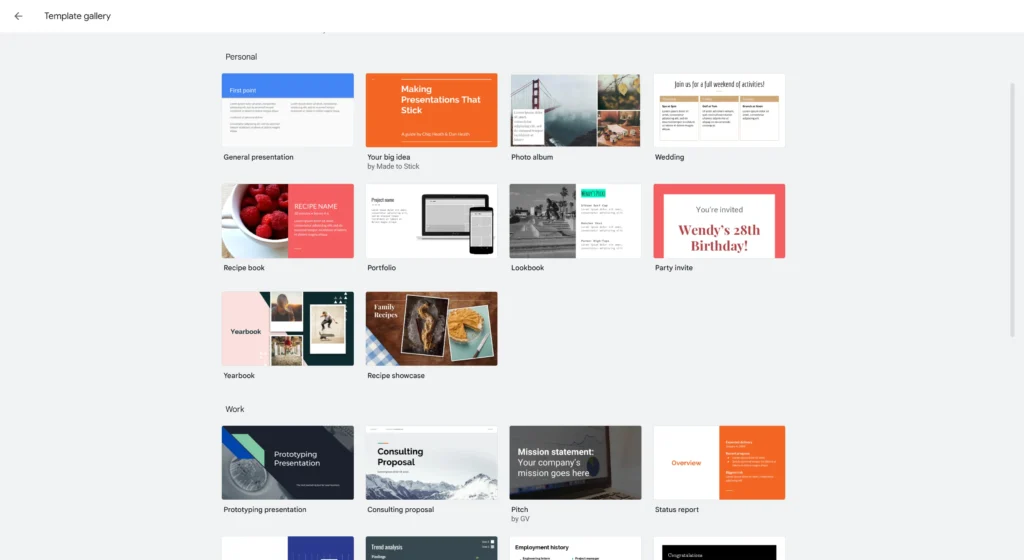
Scroll down to see the different categories. You will see options like “General,” “Recipe Book,” “Portfolio,” or “Consulting Proposal.”
-
Click on the template you want. Google Slides will automatically open a new presentation using that design.
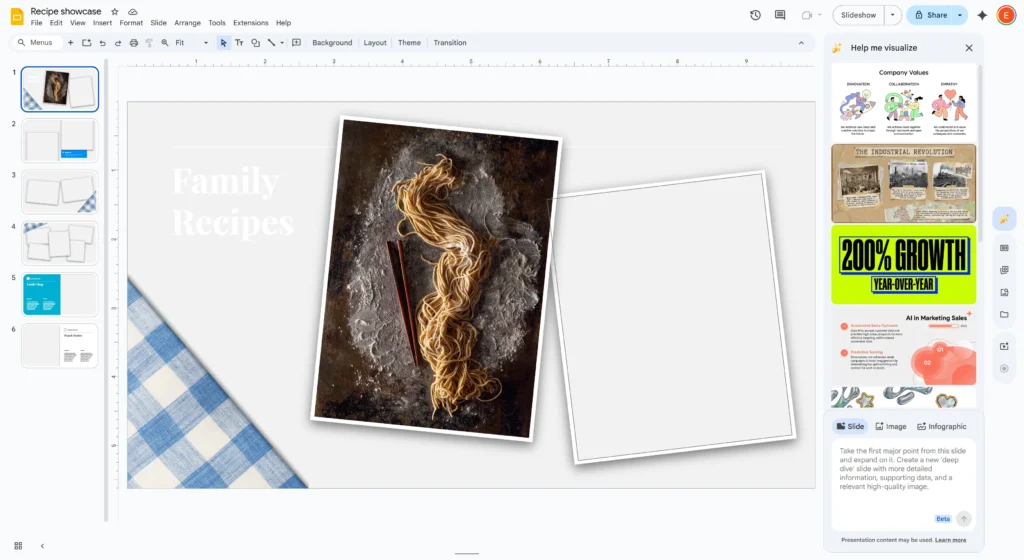
Once it opens, you can click on the text and change it to your own words. You can also delete slides you don’t need or duplicate slides you want to use again.
How to Download a Template from External Free Sites
Many third-party websites offer free templates that are more creative than the standard Google options. To use them, you usually click a button that says “Make a copy” to save it to your Drive. Some sites ask you to download a file first. Always check that the website is safe and popular before clicking download buttons.
If the standard Google templates feel a bit boring, don’t worry. The internet is full of designers who share free templates. These external templates often have more unique graphics and modern styles.
How the “Make a Copy” Method Works:
Most specific Google Slides template sites do not make you download a file to your hard drive. Instead, they use a direct link to Google Drive.
-
Find a reputable free template website (search for “free google slides themes”).
-
Browse their library and click on a presentation you like.
-
Look for a button that says “Use as Google Slides Theme” or “Copy to Google Drive.”
-
When you click it, a new tab will open with a message from Google asking: “Would you like to make a copy of [Template Name]?”
-
Click the blue button that says “Make a copy.”
Your browser will think for a moment, and then a new editable presentation will open in your Google Drive. This file is now yours. You can rename it and edit it however you like.
How to Import a Template into Google Slides
If you already have a presentation but want to change its look, you can import a new theme. Open your slide deck, click “Theme” on the toolbar, and select “Import theme.” You can then choose a presentation from your Google Drive or upload a file from your computer. This applies the new design to your current content.
Sometimes you have already written your bullet points on plain white slides, and you decide later that you want them to look pretty. You do not need to copy and paste your text into a new file. You can simply “import” the design onto your existing slides.
Follow these steps to import a theme:
-
Open your existing presentation in Google Slides.
-
Look at the toolbar at the top (where the buttons are). Find the button that says “Theme.” (Note: If you don’t see “Theme,” click on a blank area of the slide background first).
-
A panel will open on the right side of the screen. At the bottom of this panel, click the yellow button that says “Import theme.”

-
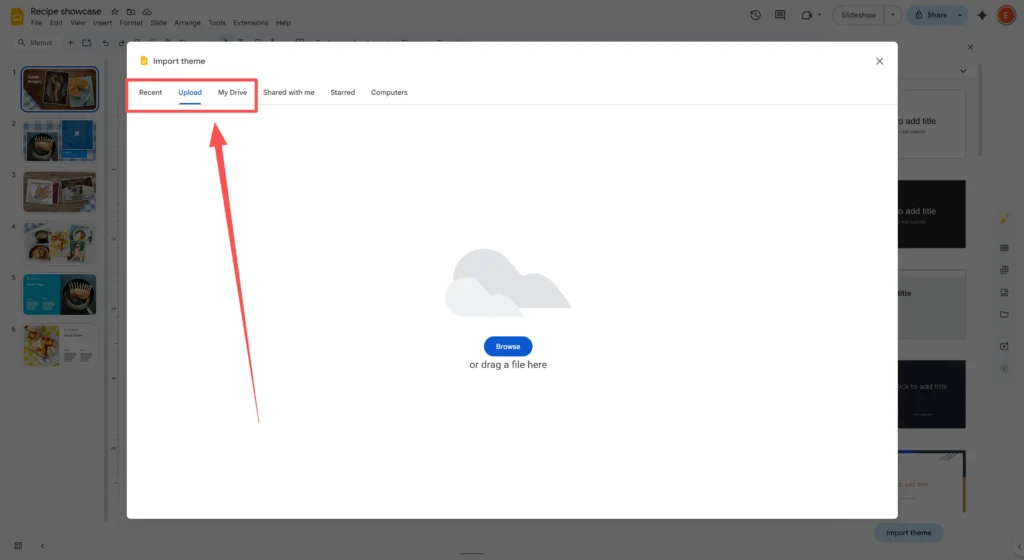
A window will pop up. You have two choices here:
-
Presentations: Pick a Google Slide file you already have in your Drive.
-
Upload: Drag and drop a file from your computer (like a PowerPoint file or a downloaded template).
-
-
Select the file and click “Select.”
-
Click the design preview and hit the “Import theme” button.
Instantly, your plain slides will update to match the new colors and fonts of the theme you imported.
How to Convert PowerPoint Templates to Google Slides
You can easily use PowerPoint files (.pptx) as Google Slides templates. First, upload the PowerPoint file to your Google Drive. Double-click the file to open it. Google will automatically convert it into the Google Slides format so you can edit it. This lets you use millions of PowerPoint designs even if you do not have Microsoft Office.
The world of presentations is split between PowerPoint and Google Slides. The good news is that Google Slides is very smart. It can read PowerPoint files perfectly well. This means if you find a great free template that says “For PowerPoint,” you can still use it.
Here is the simple conversion process:
-
Download: Download the
.pptxtemplate file to your computer’s “Downloads” folder. -
Upload: Go to your Google Drive (drive.google.com). Click the “+ New” button and select “File upload.” Choose the PowerPoint file you just downloaded.
-
Open: Once the file uploads, you will see it in your list. Double-click it.
-
Edit: It might open in a “Preview” mode first. Look at the top of the screen for a button that says “Open with Google Slides.” Click that.
Now, the file is converted. You can save it as a Google Slide file by going to File > Save as Google Slides. Now it lives in your cloud, and you can access it from anywhere.
When to Consider AI Tools Like Autoppt
Sometimes free templates are not enough because you still have to write all the content yourself. Tools like Autoppt offer a rich library of templates and use AI to generate the full presentation for you. This helps you fix design issues and write the text at the same time, improving your work efficiency significantly.
While downloading a free template solves the design problem, it leaves you with another big challenge: the writing. You still have to figure out what to say, how to summarize your points, and how to organize the logic of the presentation.
This is where Autoppt helps. It is an AI-powered presentation tool that does more than just give you a pretty background.
How Autoppt helps you save time:
-
Rich Template Library: Autoppt has a massive collection of professional templates for business, education, and creative projects. You don’t need to hunt around different websites to find a style that fits.
-
AI Slide Generation: Instead of typing into empty boxes, you tell Autoppt your topic (for example, “Marketing Plan for a Coffee Shop”). The AI will generate the outline, the text, and the slide layouts for you instantly.
-
Easy Export: Once Autoppt generates your slides, you can export them. Since Autoppt works well with standard formats, you can get a file that is easy to upload to Google Slides using the “Upload” method we discussed earlier.
If you find yourself spending hours staring at a template trying to write the perfect sentence, using a tool like Autoppt can double your work efficiency. It bridges the gap between having a nice design and having a finished presentation.
Common Template Issues and How to Fix Them
Sometimes a downloaded template might look different when you open it in Google Slides. This usually happens because of missing fonts or image errors. To fix this, you may need to replace the font with a standard Google font. If images are blurry or missing, you will have to re-upload them manually or choose a simpler layout.
Technology isn’t always perfect. When you move a file from one place to another, small things can break. Here are the most common problems and how to solve them.
-
The Fonts Look Wrong Sometimes a template uses a special font that Google Slides doesn’t have. Google will replace it with a standard font like Arial, which might look messy.
-
The Fix: Click on the text. Go to the font menu and browse “More fonts.” Google has hundreds of free fonts. Try to find one that looks similar to the original design.
-
Images Are Missing or Blurry If you upload a PowerPoint file, complex graphics or 3D effects might not show up correctly in Google Slides.
-
The Fix: You might need to simplify. Delete the broken image and use the Insert > Image > Search the web feature to find a new, high-quality picture directly inside Google Slides.
-
Text Boxes Are Misaligned Sometimes the text runs off the edge of the slide after importing.
-
The Fix: You will need to manually resize the text box. Click the edge of the box and drag the small blue squares to make it fit.
Safety and Credibility Tips
When downloading files from the internet, you must be careful to avoid viruses or bad files. Only download templates from well-known websites that have good reviews. If a site asks for your credit card for a “free” file, leave immediately. Always scan downloaded files with antivirus software before you upload them to your Google Drive.
Staying safe online is very important. Because templates are popular, some bad websites try to trick users.
Follow these safety rules:
-
No .EXE Files: A template file should end in
.pptxor be a direct Google Drive link. If you download a file and it ends in.exeor.zip(and asks you to run an installer), delete it immediately. It is likely a virus. -
Check the URL: Stick to reputable design blogs and educational sites. If the website looks messy or has too many “Download” buttons flashing at you, it is better to find a different source.
-
Read Comments: If the website allows comments, scroll down. See if other users said the template worked for them.
-
Free Means Free: A truly free template should not ask for your credit card number “just for verification.”
Conclusion
Finding the right Google Slides template is the best way to make your presentation look great without stress. Whether you use the official gallery, download a creative theme from a free website, or convert a PowerPoint file, the process is simple once you know the steps.
Remember:
-
Check the Template Gallery first for quick solutions.
-
Use the “Import Theme” tool to apply designs to slides you already wrote.
-
Stay safe by only downloading
.pptxfiles or using direct Google Drive copies.
If you want to speed up your workflow even more, consider trying Autoppt. By combining a rich library of designs with smart AI generation, you can finish your work faster and ensure your slides look professional every time.
Now that you know how to get the best templates, you are ready to start your next project!
Create worry-free presentations with AutoPPT . Turn your ideas into slides quickly—while keeping them 100% yours!
About AutoPPT: An easy use AI tool for students and professionals. Generate editable slides, customize designs, and focus on what matters—your unique ideas.

Autoppt: Generate presentations in 1 minute!
Start Free Trail Now