


Michael Anderson
Former journalist turned tech writer with a passion for helping professionals enhance productivity through AI.
Introduction: Beyond “Death by PowerPoint”—Crafting Presentations That Persuade and Inspire
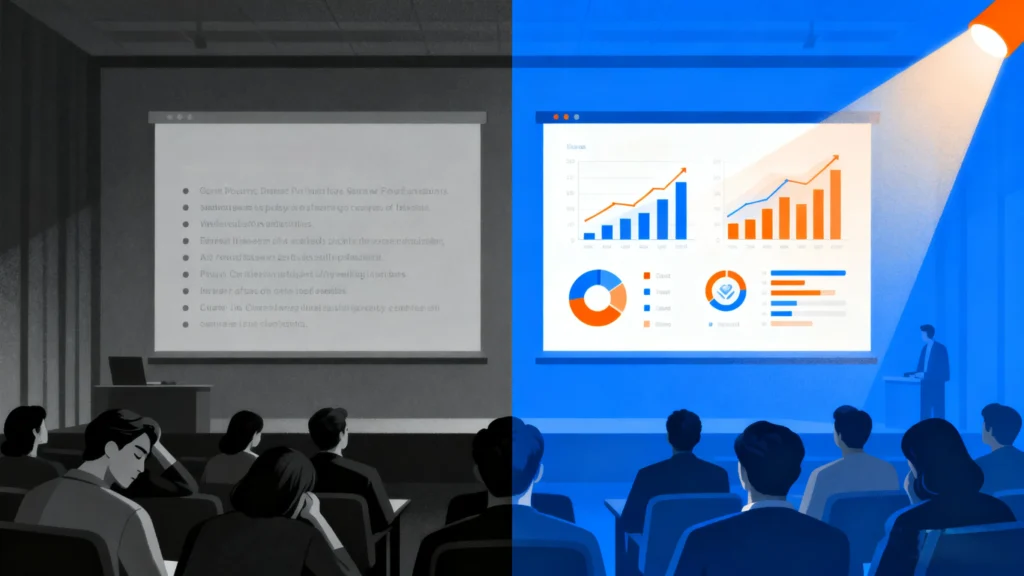
We have all been there. Seated in a dimly lit conference room, the hum of the projector a monotonous drone, as slide after slide of dense, bullet-pointed text crawls across the screen. This is “Death by PowerPoint,” a phenomenon so universally recognized it has become a cultural touchstone for corporate tedium. It is the slow, agonizing drain of energy and attention from an audience, leaving them more confused, bored, or overwhelmed than when they arrived. But the blame is often misplaced. The failure lies not with the software itself—a tool of immense potential—but with its application.
The core problem stems from a fundamental misunderstanding of what a presentation is. Too often, slides are treated as documents to be read, packed with every detail and data point, serving as a crutch for the presenter. This approach creates static, text-heavy slides and visuals that, rather than clarifying a message, add layers of cognitive noise. The result is a missed opportunity: a failure to connect, to persuade, and to inspire action. The presenter, armed with powerful ideas, is let down by a delivery that fails to engage the most powerful information-processing tool in the room: the human visual system.
This guide is the definitive antidote to that mediocrity. It is a roadmap for transforming your presentations from static documents into dynamic, persuasive visual experiences. We will equip you with two distinct but complementary toolsets. First, we will achieve a deep mastery of PowerPoint’s foundational visual effects, moving beyond random animations to understand the psychological principles that make them effective. You will learn not just how to click the buttons, but why and when to use each effect to guide attention and enhance comprehension. Second, we will explore the new frontier of presentation design: AI-powered charting and data storytelling. You will discover how to leverage artificial intelligence to automate tedious design work, uncover deeper insights in your data, and craft compelling, data-driven narratives with unprecedented speed and clarity.
Our journey is structured to build your skills from the ground up. We will begin by establishing the psychological underpinnings of visual effects, then dive into a strategic analysis of 13 essential animations and transitions. From there, we will pivot to the revolutionary impact of AI on data visualization, providing a practical framework for integrating these powerful new tools into your workflow. The promise of this guide is not merely to teach you new PowerPoint tricks; it is to fundamentally elevate your role from a slide technician to a confident and compelling visual storyteller.
Section 1: The Psychology of Motion: Why Strategic Visual Effects Matter
Before exploring a single animation effect, it is critical to understand the foundational principles that govern their effectiveness. The strategic use of visual effects is not about adding decorative flair or “making things look cool.” It is a sophisticated application of cognitive psychology, designed to work with the brain’s natural tendencies to direct focus, manage cognitive load, and deepen understanding. When used with purpose, motion and transitions cease to be distractions and become indispensable tools of narrative control.
Guiding the Eye, Guiding the Mind
The human visual system is hardwired to notice motion. For millennia, this trait was a survival mechanism—a rustle in the bushes could signify either predator or prey. In the context of a presentation, this primal instinct can be harnessed for immense benefit. An audience confronted with a slide full of text and graphics will invariably let their eyes wander, often reading ahead of the speaker and disengaging from the spoken narrative. This creates a cognitive disconnect; they are processing one set of information visually while trying to process another aurally.
Strategic entrance animations solve this problem by imposing order on information delivery. By having elements—whether bullet points, images, or chart components—”Appear” on the slide one at a time, precisely as you begin to speak about them, you seize control of the audience’s focus. You are no longer competing with your own slides for attention. Instead, the visual reveal is synchronized with your verbal explanation, creating a single, powerful channel of communication. This sequential revelation prevents the audience from being overwhelmed by a dense slide and allows you, the presenter, to set the pace, build suspense, and ensure that your key messages land with maximum impact.
Creating Cognitive Connections
Beyond simply directing attention, transitions can create powerful, intuitive links between ideas. In a typical presentation, moving from one slide to the next is a jarring “cut,” an abrupt break in the visual field that forces the audience’s brains to re-evaluate a completely new scene. This mental reset, repeated dozens of times, contributes to cognitive fatigue.
Sophisticated transitions, particularly Morph, work differently. By creating a seamless visual flow between two slides, Morph can make abstract connections tangible. Imagine showing the evolution of a product design from version 1.0 to 2.0. Instead of cutting between two static images, Morph animates the transformation, allowing the audience to see the changes unfold. This visually reinforces the concept of evolution. Similarly, it can be used to zoom into a specific region of a map, maintaining the context of the larger geography, or to show how components of a process flow diagram rearrange themselves in a new configuration. This visual continuity helps the audience understand relationships—cause-and-effect, process flows, structural changes—at an intuitive level, reducing the cognitive effort required to connect the dots based on verbal explanation alone.
The Risk of Overload
The power of motion is a double-edged sword. While controlled motion directs focus, uncontrolled or excessive motion creates cognitive chaos. This is where the concept of the “signal-to-noise ratio” becomes critical. The “signal” is your core message—the key idea you want the audience to understand and remember. The “noise” is everything else—unnecessary graphics, distracting animations, and any visual element that does not directly support the signal.
Every spinning, bouncing, or checkerboard-wipe animation you add introduces noise. While it may seem engaging for a moment, it ultimately forces the audience’s brain to process the mechanics of the animation itself, drawing precious cognitive resources away from your message. The goal is professional subtlety, not a Las Vegas spectacle. A well-crafted presentation uses a minimal set of effects consistently and with clear purpose. A simple “Fade” or “Appear” is almost always more professional and effective than a “Swivel” or “Bounce.” By minimizing the noise, you amplify the signal, ensuring your message is received with clarity and precision.
Ultimately, the choice and execution of visual effects send a powerful meta-message about the presenter. A presentation with smooth, purposeful, and subtle effects feels deliberate, polished, and well-rehearsed. This projects an aura of confidence, control, and expertise. Conversely, a presentation littered with jarring, random, or clichéd animations feels amateurish, unprepared, and even disrespectful of the audience’s time and intelligence. Therefore, mastering visual effects is not merely an aesthetic exercise; it is an essential component of building your ethos and earning the trust of your audience before you have even delivered your first key point.
Section 2: Mastering the Core Toolkit: A Strategic Guide to PowerPoint’s 13 Essential Visual Effects
With a firm grasp of the psychology behind visual effects, we can now move from the “why” to the “how.” This section provides a detailed breakdown of 13 essential effects that form the backbone of professional presentation design. They are not a random collection of features but a curated toolkit, which we will explore in three logical categories: seamless transitions that guide the narrative between slides, object animations that control the flow of information on a single slide, and emphasis effects that draw focus to critical data.
For each effect, we will follow a consistent framework:
-
What It Is: A clear, concise technical description.
-
Strategic Use Case: The specific narrative or communicative purpose it serves best, with practical business examples.
-
Pro-Tip: An advanced technique or nuance to elevate its application.
-
Pitfall to Avoid: A common mistake that can undermine the effect’s power and make your presentation look unprofessional.
Part I: Guiding the Narrative with Seamless Transitions
Transitions are the bridges between your ideas. They manage the flow from one slide to the next, and when used correctly, they can make a collection of individual slides feel like a single, coherent story.
-
Morph
-
What It Is: Morph is a revolutionary transition that recognizes objects that exist on two consecutive slides and automatically animates the changes in their size, position, shape, and color.
-
Strategic Use Case: Its primary function is to visualize transformation or evolution. It is unparalleled for showing a process, a change over time, or a shift in focus. For example, you can use Morph to show a product prototype evolving into the final version, a simple organizational chart expanding to include new departments, or to create a “zoom” effect by having a small object on the first slide become the full-screen background of the second.
-
Pro-Tip: To gain precise control over Morph, use the “Selection Pane” (found under the Home tab > Arrange > Selection Pane). Give the objects you want to morph identical names on both slides, starting with two exclamation marks (e.g.,
!!Shape1). This explicitly tells PowerPoint that these two objects are the same entity, ensuring a smooth and predictable transformation even with complex shapes. Using vector graphics like SVGs with Morph produces the most flawless results. -
Pitfall to Avoid: Avoid trying to morph two completely unrelated objects (e.g., a square into a complex photograph). The result is often a jarring and confusing “fade” effect rather than a smooth transition. Morph works best when there is a clear and logical connection between the start and end states.
-
Push
-
What It Is: The Push transition slides the next slide into view, pushing the current one out of the frame in a specified direction (e.g., from the right, from the top).
-
Strategic Use Case: Push is excellent for creating the illusion of a single, continuous canvas. Use it to connect slides that are conceptually adjacent. For a presentation agenda, you can “Push” from left to right as you move from Topic 1 to Topic 2 to Topic 3, giving the audience a spatial sense of progression. It’s also effective for revealing different parts of a large diagram or infographic piece by piece, as if panning a camera across a large poster.
-
Pro-Tip: Combine Push transitions with your slide layout. For a four-quadrant matrix, use “Push from Right” to reveal the top-right quadrant, then “Push from Bottom” to reveal the bottom-right, creating a logical path through the visual.
-
Pitfall to Avoid: Inconsistent direction. If you are using Push to signify forward movement through an agenda, stick to “Push from Right.” Randomly changing the direction (from right, then from top, then from left) breaks the spatial metaphor and creates visual confusion.
-
Wipe
-
What It Is: Wipe reveals the next slide by “wiping” over the current one from a set direction.
-
Strategic Use Case: Wipe is a clean, professional transition that reinforces a sense of progression or reveal. A “Wipe from Left” mimics the turning of a page in a book, making it a natural choice for linear, story-driven presentations. A “Wipe from Top” can be used to suggest a new layer of information being laid down on top of the previous concept. It is more dynamic than a simple cut but less dramatic than a push.
-
Pro-Tip: Adjust the speed of the Wipe. A slightly faster duration (<0.50 seconds) makes it feel crisp and efficient, while a slower wipe can be used for more dramatic reveals.
-
Pitfall to Avoid: Overusing complex wipe patterns like “Wipe with Shape” (e.g., a diamond wipe). These are distracting and often look dated. Stick to the simple, directional wipes for a clean, modern aesthetic.
-
Cut
-
What It Is: The Cut transition is, in fact, the absence of a visible transition effect. It is an instantaneous change from one slide to the next.
-
Strategic Use Case: While it may seem basic, the Cut is a powerful strategic tool. Its primary use is to signal a significant shift in topic or context. After concluding a major section of your presentation, a sharp “Cut” to a new section title slide creates a clean break. It is also the default and best choice for moving to a “Q&A” or “Thank You” slide, as any other transition would feel out of place. It is the invisible workhorse of professional presentations.
-
Pro-Tip: Use Cut as your default transition for the majority of your slides. Then, insert more dynamic transitions like Morph or Push only when you have a specific narrative reason to do so. This makes the moments you do use a special transition feel more impactful.
-
Pitfall to Avoid: The mistake is not in using Cut, but in not using it. Many presenters feel they need to add a transition to every slide. This is unnecessary. A presentation that relies primarily on Cuts, with a few well-placed Morphs, often feels more confident and professional than one that uses a different transition on every slide.
Part II: Directing Focus with Object Animations (Entrance & Exit)
Object animations control how and when individual elements appear on and disappear from a single slide. This is where you gain granular control over the flow of information and the audience’s attention.
-
Appear
-
What It Is: The simplest entrance animation. The object instantly appears on the slide with no motion.
-
Strategic Use Case: This is the most professional and versatile entrance effect in your toolkit. Its purpose is to reveal information precisely when you are ready to discuss it. Use it to build bulleted lists one point at a time, reveal the bars of a chart sequentially as you explain the data, or introduce labels onto a diagram. Its lack of motion is its greatest strength—it directs attention without distraction.
-
Pro-Tip: In the “Effect Options,” set your bullet points to appear “By Paragraph.” Then, in the “Animation Pane,” set each point to appear “On Click.” This gives you maximum control, allowing you to pace the delivery of each point to match your speech.
-
Pitfall to Avoid: Revealing all your bullet points at once. This invites the audience to read ahead, tune you out, and form their own conclusions before you have had a chance to frame the information.
-
Fade
-
What It Is: A slightly softer version of Appear, where the object smoothly fades into view.
-
Strategic Use Case: Fade is excellent for introducing elements that should feel more integrated or less abrupt. It works beautifully for background images, subtle watermarks, or quotes that you want to introduce with a touch of elegance. It is also a great alternative to Appear when you want a slightly less stark reveal.
-
Pro-Tip: Use a “Fade” entrance animation on one object and a “Fade” exit animation on another to create a smooth cross-fade effect on a single slide, allowing you to swap out images or charts without a jarring cut.
-
Pitfall to Avoid: Setting the fade duration too long. A slow fade can feel sluggish and test the audience’s patience. Keep the duration short (around 0.25 to 0.50 seconds) to maintain a crisp pace.
-
Fly In
-
What It Is: This animation moves an object onto the slide from a specified direction.
-
Strategic Use Case: Use this effect with extreme caution and only when the motion is contextually relevant. For example, you can have an arrow icon “Fly In from Left” to point at a key element on the right side of the slide. The motion should have a logical purpose that reinforces your message.
-
Pro-Tip: Always customize the direction and speed. In the “Effect Options,” change the direction to match the logic of your slide. Crucially, set the speed to “Fast” (e.g., 0.5 seconds or less) and remove the “Smooth end” effect. A slow, gliding “Fly In” is a hallmark of amateur presentations; a fast one can be an effective accent.
-
Pitfall to Avoid: The default “Fly In from Bottom” for bullet points. This is perhaps the most overused and clichéd animation in PowerPoint’s history. It is distracting, adds no value, and instantly cheapens the look of a presentation. Avoid it at all costs.
-
Motion Paths
-
What It Is: Motion Paths allow you to animate an object along a predefined or custom-drawn path on the slide.
-
Strategic Use Case: This is the ultimate tool for demonstrating a process, flow, or journey. Animate an icon of a truck moving along a supply chain diagram, a data packet traveling through a network schematic, or a customer’s journey through a sales funnel. It turns a static diagram into a dynamic explanation.
-
Pro-Tip: Combine a Motion Path with another effect for greater realism. For instance, pair a Motion Path with a “Grow/Shrink” effect to make it seem like an object is moving closer to or farther away from the viewer. Use the “Animation Painter” to easily apply a complex motion path to multiple objects.
-
Pitfall to Avoid: Creating overly complex or jerky motion paths. The path should be smooth and its purpose immediately obvious. A chaotic, spaghetti-like path will only confuse your audience.
-
Disappear / Fade (Exit)
-
What It Is: Exit animations remove an object from the slide. Disappear makes it vanish instantly, while Fade makes it fade out smoothly.
-
Strategic Use Case: The primary purpose of exit animations is to de-clutter a slide and maintain context. Imagine you have a slide with a chart explaining Q1 results. Instead of moving to a new slide for Q2, you can use a “Fade” exit animation on the Q1 chart and a “Fade” entrance animation on the Q2 chart. This allows you to discuss sequential data while keeping the slide title and other contextual elements constant.
-
Pro-Tip: Use exit animations to create interactive-feeling slides. You can have three icons representing three different topics. When you click on one, it remains, while the other two “Fade” out, and the detailed information for the selected topic appears.
-
Pitfall to Avoid: Overusing exit animations. In most cases, it’s better to simply move to the next slide. Only use an exit effect when there is a strong narrative reason to remove an element while keeping the rest of the slide in view.
Part III: Creating Emphasis and Bringing Data to Life
Emphasis effects are used to draw attention to an object that is already present on the slide. They are your digital laser pointer, far more elegant and effective than circling something with your mouse.
-
Grow/Shrink
-
What It Is: This effect temporarily enlarges an object and then, optionally, shrinks it back to its original size.
-
Strategic Use Case: This is perfect for drawing immediate attention to a critical piece of information. As you announce, “The most important number on this slide is our 45% growth in Q3,” you can have that specific number on the chart “Grow” to 120% of its size and then shrink back. This visual punch ensures the audience looks exactly where you want them to.
-
Pro-Tip: In the “Effect Options,” set the size to a subtle increase (e.g., 110% or 120%) and check the “Auto-reverse” box. This creates a clean, professional “pulse” effect that draws the eye without being overly dramatic.
-
Pitfall to Avoid: Making the object grow too large or for too long. The effect should be a quick, subtle pulse to draw attention, not a distracting, lengthy animation.
-
Object Color / Color Pulse
-
What It Is: This animation changes the color of an object (text, a shape, a chart series) to a different color. Color Pulse does this temporarily.
-
Strategic Use Case: This is an incredibly powerful tool for focusing on one part of a complex visual. On a bar chart showing sales across five regions, you can have all bars in a neutral gray. As you discuss the European market, you can have that specific bar change color to your vibrant brand color. This visually isolates the data point you are discussing, making it incredibly easy for the audience to follow along.
-
Pro-Tip: Use this in combination with the “Appear” animation for charts. First, have the gray bars “Appear.” Then, on your next click, have the first bar change color as you begin discussing it. This two-step process provides maximum clarity.
-
Pitfall to Avoid: Choosing a jarring color combination. The color change should be intentional and aesthetically pleasing, often moving from a neutral or muted color to a saturated, high-contrast color.
-
Underline
-
What It Is: A simple but effective animation that draws an underline beneath a piece of text.
-
Strategic Use Case: In a dense block of text, like a customer testimonial or a mission statement, it can be difficult to draw attention to a key phrase. The Underline animation allows you to highlight that specific phrase at the exact moment you say it, guiding the audience’s eyes without needing to animate the entire text block.
-
Pro-Tip: For maximum effect, reveal the full block of text first (statically), then use the Underline animation on click to emphasize your chosen phrase. This separates the act of reading from the act of focusing.
-
Pitfall to Avoid: Underlining too many things. Like any emphasis effect, its power comes from its sparing use. If you underline every other sentence, the effect loses all meaning.
-
Animation Painter
-
What It Is: This is a workflow tool rather than a visual effect itself. It allows you to copy all the animation settings (the effect, duration, timing, and options) from one object and apply them to another.
-
Strategic Use Case: Its purpose is to ensure consistency and save enormous amounts of time. Once you have perfected a complex animation sequence on one element (e.g., a “Fade In,” a “Color Pulse,” then a “Fade Out”), you can use the Animation Painter to apply that exact same sequence to five other elements with just a few clicks. This is essential for creating professional, uniform animations across your entire presentation.
-
Pro-Tip: Double-click the Animation Painter button to “lock” it. This allows you to apply the copied animation to multiple objects one after another without having to re-select the painter each time. Press the “Esc” key to deactivate it.
-
Pitfall to Avoid: Forgetting it exists. Manually recreating animations for multiple objects is not only tedious but also a recipe for inconsistency (e.g., slightly different durations or start times). The Animation Painter is a core tool for any serious PowerPoint user.
By mastering this toolkit, you begin to move beyond simply placing objects on a slide. You are learning the grammar of visual language. Entrance effects act as verbs, introducing a new idea or subject into the narrative. Emphasis effects are adjectives, modifying or highlighting a quality of an existing idea. Exit effects clear the stage, and transitions serve as the crucial conjunctions that link your ideas into a coherent, persuasive argument. This understanding transforms the act of building a presentation from a technical task into an act of visual rhetoric.
Section 3: Reference Framework: The Presenter’s Quick-Reference Matrix
While the detailed analysis in the previous section is crucial for deep understanding, a presenter working against a deadline needs a way to make quick, effective decisions. This matrix serves as that practical “cheat sheet.” It distills the core function, ideal application, and critical warnings for each of the 13 essential effects into a scannable, actionable format. Bookmark this page and refer to this table the next time you are building a presentation to ensure every visual effect you choose has a clear and strategic purpose.
The Presenter’s Quick-Reference Matrix: 13 Essential PowerPoint Visual Effects
| Effect Name | Category | Primary Narrative Function | Ideal Use Case Example | Overuse Warning & Pro-Tip |
| Morph | Transition | Shows evolution/transformation | Animating a product’s journey from v1 to v2; zooming into a map. | Warning: Avoid morphing unrelated shapes; can be jarring. Pro-Tip: Use the Selection Pane to name objects for precise control. |
| Push | Transition | Creates a continuous canvas | Moving sequentially through an agenda; panning across a large diagram. | Warning: Inconsistent directions break the spatial metaphor. Pro-Tip: Use a consistent direction (e.g., from right) for linear flow. |
| Wipe | Transition | Provides a clean, directional reveal | Mimicking a page turn (Wipe from Left); revealing a new layer of info. | Warning: Avoid dated shape wipes (e.g., star, diamond). Pro-Tip: Keep the duration fast (<0.5s) for a crisp feel. |
| Cut | Transition | Signals an abrupt shift in topic | Moving to a new presentation section; transitioning to the Q&A slide. | Warning: The mistake is not using it enough. Pro-Tip: Make this your default transition for a professional feel. |
| Appear | Entrance Animation | Controls information reveal | Revealing bullet points one-by-one as you speak to them. | Warning: Never reveal all points at once. Pro-Tip: This should be your default entrance animation for text and charts. |
| Fade | Entrance Animation | Introduces elements subtly | Bringing in a background image; introducing a customer quote elegantly. | Warning: A slow fade feels sluggish. Pro-Tip: Keep duration short (<0.5s) to maintain pace. |
| Fly In | Entrance Animation | Shows directional movement | An arrow flying in to point at a target; a logo entering from the side. | Warning: The default “Fly In from Bottom” is the ultimate cliché. Pro-Tip: Always customize the direction and set the speed to “Fast.” |
| Motion Paths | Entrance Animation | Demonstrates a process or journey | Animating a vehicle along a supply chain map; showing data flow. | Warning: Overly complex paths are confusing. Pro-Tip: Combine with Grow/Shrink to simulate distance. |
| Disappear / Fade | Exit Animation | De-clutters a slide for new info | Fading out a Q1 chart to make room for a Q2 chart on the same slide. | Warning: Use sparingly; moving to a new slide is often better. Pro-Tip: Create interactive-feeling slides by fading out unselected options. |
| Grow/Shrink | Emphasis Animation | Draws focus to a key point | Temporarily enlarging a key statistic on a table as you announce it. | Warning: Too large of a growth factor is distracting. Pro-Tip: Use a subtle size (110-120%) with “Auto-reverse” for a clean pulse. |
| Object Color | Emphasis Animation | Highlights a specific data point | Changing one bar on a chart from gray to blue as you discuss it. | Warning: Jarring color choices can be unpleasant. Pro-Tip: Use to isolate one data series at a time in a complex chart. |
| Underline | Emphasis Animation | Emphasizes a key phrase in text | Highlighting the most impactful phrase in a customer testimonial. | Warning: Underlining too much text negates the effect. Pro-Tip: Reveal the text first, then use Underline on click. |
| Animation Painter | Workflow Tool | Ensures consistency, saves time | Copying a perfected multi-step animation sequence to all other icons. | Warning: Forgetting to use it leads to inconsistency and wasted time. Pro-Tip: Double-click the icon to apply the same animation to multiple objects. |
Section 4: The Next Frontier: Supercharging Your Data Storytelling with AI
Having mastered the manual techniques for controlling narrative and focus, we now turn to the most time-consuming and often challenging aspect of modern presentations: data visualization. For decades, creating compelling, accurate, and well-designed charts in PowerPoint has been a largely manual process. This is where the next great leap in presentation effectiveness lies. Artificial intelligence is no longer a futuristic concept; it is a practical tool that is fundamentally revolutionizing how we find and tell stories with data.
Part I: The Manual Bottleneck: Where Traditional Charting Falls Short
Before we can appreciate the solution AI offers, we must first honestly diagnose the persistent problems it solves. For most professionals, the process of translating a spreadsheet of data into a clear and persuasive chart is fraught with friction and potential pitfalls. These challenges can be grouped into four key pain points.
-
The Time Sink: The sheer amount of time spent on the mechanics of chart creation is a major drain on productivity. Manually inputting data, selecting chart types, adjusting axis labels, formatting legends, ensuring every color aligns with the corporate brand guide, and resizing text boxes is a laborious, click-intensive process. This is low-value work that consumes time and energy that would be far better spent on interpreting the data and refining the narrative.
-
The “Chart-Type” Dilemma: Most professionals are not trained data visualization experts. They are faced with a dizzying array of chart options—bar, stacked bar, line, area, pie, scatter, waterfall—and often lack the specific expertise to choose the one that most accurately and effectively represents the story in their data. A poor choice can be actively misleading; for example, using a line chart for categorical data can imply a trend that doesn’t exist, while a pie chart with too many slices becomes an unreadable mess.
-
Pervasive Design Inconsistency: In a comprehensive report or business review, a presenter might need to create ten or twenty different charts. Manually ensuring that every single one has the exact same font size, color palette, axis thickness, and overall style is nearly impossible. The result is often a presentation with subtle but noticeable inconsistencies that, taken together, make the final product look disjointed and unprofessional.
-
The Data-to-Insight Gap: A standard PowerPoint chart is very good at showing what happened. It can show that sales went up or that market share declined. However, it does very little to explain why it happened or what the key takeaway is. Bridging this gap from raw data to actionable insight requires an additional layer of manual effort from the presenter—they must analyze the chart, synthesize the key message, and then manually add a title, callout boxes, or annotations to spell out that conclusion for the audience.
Part II: How AI Revolutionizes Presentation Charts
AI-powered data visualization tools, often available as PowerPoint add-ins or connected web platforms, directly address these manual bottlenecks. They automate tedious work and provide expert-level guidance, fundamentally changing the charting process from manual construction to strategic refinement.
-
Intelligent Chart Recommendations: This is perhaps the most powerful capability. Instead of presenting you with a blank menu of options, an AI tool analyzes the structure of your data. It recognizes if you have time-series data, categorical comparisons, or part-to-whole relationships. Based on this analysis, it will not only suggest the most effective chart type (e.g., “A line chart is best for showing this trend over time”) but also explain the data visualization principles behind its recommendation, educating the user in the process.
-
Automated Design & Theming: Imagine uploading your company’s brand guide—logos, color palette, and fonts—once. From that moment on, every chart you create is automatically and perfectly branded. AI tools can apply these themes with a single click, ensuring absolute consistency across an entire presentation. This eliminates hours of tedious formatting and elevates the professionalism of the final document.
-
Data-to-Narrative Generation: The most advanced AI tools can bridge the data-to-insight gap. After generating a chart, the AI can analyze visual data to identify the most significant patterns, outliers, or trends. It can then automatically generate a suggested slide title or a concise summary sentence that captures the key insight. For example, it might analyze a sales chart and generate the title: “Q3 Sales Surged by 30%, Driven by Strong Performance in the EMEA Region.” This provides an expert-level starting point for the presenter’s narrative.
-
Dynamic Data Updates: Many AI charting tools can connect directly to live data sources like Google Sheets, Excel Online, or even a CRM database. This creates a “single source of truth.” If the underlying data in the spreadsheet is updated, the charts in your presentation can be refreshed with a single click, eliminating the need to manually recreate them and dramatically reducing the risk of presenting outdated information.
The integration of these AI capabilities represents more than just an incremental improvement in efficiency. It signals a fundamental shift in the role of the presenter. For years, a significant portion of a presenter’s time and cognitive energy was consumed by the low-value, “technician” work of building and formatting slides. AI automates that work. This automation frees up the presenter’s finite mental bandwidth to focus exclusively on the high-value “strategist” and “storyteller” work: What does this data truly mean for our business? What is the most compelling narrative to wrap around these facts? What questions or objections will my audience have, and how can I proactively address them? AI is not a crutch that replaces skill; it is a force multiplier that allows a skilled professional to operate at a higher strategic level. It handles the mechanics of visualization so the presenter can master the art of communication.
Section 5: A Practical Framework: Integrating AI into Your Presentation Workflow
Understanding the potential of AI is one thing; successfully integrating it into your day-to-day work is another. The most effective approach is not to simply hand over control to the machine, but to establish a new, hybrid workflow where human strategy guides AI-powered execution. This five-step framework provides a practical guide to moving from theory to application.
Step 1: Data Preparation & Clarity of Purpose
The old adage “garbage in, garbage out” has never been more relevant. AI tools are powerful, but they are not mind-readers. Before you even open a charting tool, the foundation for success is laid in your spreadsheet. Ensure your data is clean, well-structured, and clearly labeled. More importantly, be clear about your own objective. What question are you trying to answer with this data? What is the single most important message you want your audience to take away from this chart? This initial strategic clarity is a uniquely human contribution that will guide the entire process.
Step 2: Choosing Your Tool & Inputting Data
The market for AI presentation tools is growing rapidly. They range from dedicated PowerPoint add-ins that work directly within your familiar environment to standalone web-based platforms that offer more advanced capabilities. Choose a tool that fits your technical comfort level and organizational needs. The process of inputting data is typically straightforward, involving either uploading a file (like an Excel or CSV file) or, for more advanced workflows, connecting the tool directly to a live data source like a Google Sheet or a business intelligence platform.
Step 3: Leveraging AI Recommendations
Once your data is loaded, the AI will get to work. It will analyze the data’s structure and present you with one or more suggested chart types. This is a critical moment. Do not passively accept the first option. Instead, treat the AI as a data visualization consultant. Review its suggestions and, crucially, read the reasoning it provides for its choices. This is an opportunity to not only get a better chart but to also deepen your own understanding of data visualization principles. You might find it suggests a waterfall chart to show the components of a change, or a scatter plot to reveal a correlation you hadn’t considered.
Step 4: Refining and Customizing the Narrative
This is the most important step, where human intelligence and contextual understanding come to the forefront. The AI provides a technically correct and well-designed visual foundation, but you provide the story. The AI might generate a title like “Sales by Region, Q1-Q4.” You, knowing the business context, can refine this into a much more powerful narrative title like “EMEA Growth Outpaces All Other Regions, Driving Record Q4 Performance.” You can add annotations to point out specific events that caused a dip or a spike. You can customize colors to draw attention to your own region’s performance. The AI builds the chart; you build the argument.
Step 5: Seamless Integration and Animation
Once you have refined the chart and its narrative in the AI tool, export it into your PowerPoint slide. It will typically be inserted as a high-quality, editable object. Now, the final and most powerful step is to connect the two halves of this guide. Apply the subtle, purposeful animation techniques you learned in Section 2 to the AI-generated chart. For example:
-
Have the chart’s title and axes appear first to set the context.
-
Then, have the bars of the chart Appear one by one, on click, allowing you to tell the story of each data point sequentially.
-
Finally, use an emphasis effect like Object Color or Grow/Shrink to draw attention to the single most important bar or data point on the chart as you deliver your concluding insight.
This hybrid workflow represents the pinnacle of modern presentation design. It combines the speed, consistency, and design expertise of artificial intelligence with the irreplaceable strategic oversight, contextual understanding, and narrative skill of a human presenter. The AI handles the “how” of creating a world-class visual, freeing you to focus entirely on the “why” of the story you are telling. This symbiotic relationship is not AI versus human, but AI augmenting human, and it is the key to unlocking a new level of persuasive power in your presentations.
Conclusion: From Technician to Storyteller
Our journey began with a shared frustration: the experience of “Death by PowerPoint.” We established that the fault lies not in the tool, but in our approach to it. Over the course of this guide, we have systematically dismantled that old approach and built a new one, grounded in the principles of cognitive psychology and powered by cutting-edge technology.
We started by understanding the “why”—that the human brain is hardwired to respond to motion, and that by controlling this motion with purpose, we can guide attention, manage cognitive load, and build stronger mental connections for our audience. We then translated that theory into practice, mastering the “visual grammar” of 13 essential effects. We learned that transitions are the conjunctions that link our ideas, entrance animations are the verbs that introduce them, and emphasis effects are the adjectives that give them weight and meaning. This toolkit alone, when used with discipline and subtlety, can elevate the clarity and professionalism of any presentation.
Finally, we ventured into the next frontier, exploring how artificial intelligence can serve as a powerful partner in the most challenging aspect of modern communication: data storytelling. We saw how AI can obliterate the manual bottlenecks of chart creation, acting as an expert consultant to recommend the right visuals, a tireless designer to ensure brand consistency, and an insightful analyst to help uncover the core message hidden within the numbers. We established a practical workflow that marries the efficiency of AI with the indispensable narrative wisdom of the presenter.
The central theme connecting these two halves is a fundamental shift in your role. The tools and techniques outlined here are all in service of one ultimate goal: to transition you from a builder of slides to a teller of compelling stories. Mastery is not measured by how many effects you use or how complex your charts are. It is measured by your ability to use the right tools with intention, clarity, and a relentless focus on the audience’s understanding. The goal is to make the technology—whether a simple “Appear” animation or a sophisticated AI platform—fade into the background, becoming an invisible engine that drives your story forward.
To begin this transformation, the first step need not be monumental. In your very next presentation, I challenge you to do two things:
-
Replace all your animated bullet point reveals with the simple, clean ‘Appear’ animation. Feel the control it gives you as you pace your delivery and command the room’s focus.
-
If you have a chart, pause and ask yourself one critical question: “Is this the absolute best way to tell this data’s story?”
Let that question be the start of your journey. Let it be the catalyst that moves you beyond the bullet point and empowers you to become the persuasive, inspiring visual storyteller your ideas deserve.
Create worry-free presentations with AutoPPT . Turn your ideas into slides quickly—while keeping them 100% yours!
About AutoPPT: An easy use AI tool for students and professionals. Generate editable slides, customize designs, and focus on what matters—your unique ideas.

Autoppt: Generate presentations in 1 minute!
Start Free Trail Now