


Michael Anderson
Former journalist turned tech writer with a passion for helping professionals enhance productivity through AI.
Introduction
Ever had that mini-heart-attack moment? You open Google Slides, ready to build a new presentation, but… nothing. The familiar template gallery is gone. The standard themes like “Simple Light” or “Modern” have vanished, replaced by a blank void or a set of weird, branded templates you don’t recognize.
Don’t panic. You’re not alone, and you didn’t break anything.
This is a common issue, and the good news is that it’s almost always an easy fix. In this quick guide, we’ll walk you through the common reasons why your Google Slides templates disappear and give you the step-by-step solutions to get them back.

Why Did My Google Slides Templates Disappear?
Before we jump to the fix, it helps to know why this happens. Usually, it’s one of three reasons:
-
You’re Using a Work or School Account: This is the most common reason. Google Workspace (the business version of Google) lets an administrator—like your company’s IT department—create a custom set of templates for the whole organization. This is done to keep branding consistent. In many cases, these custom templates replace the default Google ones. So, it’s not a bug; it’s a feature!
-
A Simple Browser Glitch: Sometimes, your browser’s cache (the memory of files it stores to load websites faster) gets confused. A small, corrupted file might be preventing the Google Slides interface from loading correctly.
-
A Hidden Setting: On the Google Slides home page (where you see all your presentations), there’s a setting to show or hide templates. You might have accidentally toggled it off.
How to Get the Original Templates Back (Step-by-Step)
Let’s get your settings back to normal. Follow these steps in order.
Step 1: First, Identify Your Account Type
This is the most important step, as it tells you which fix will work.
-
Look at the email address you’re logged in with.
-
Does it end in
@gmail.com? You have a Personal Account. The fixes in Step 2 and 3 are for you. -
Does it end in
@yourcompany.comor@yourschool.edu? You have a Google Workspace Account. The fix in Step 4 is for you.
Step 2: The Main Fix for Personal Accounts (Reset Your Theme)
If you’re on a personal account and your themes are missing inside a presentation, here’s the quick fix.
-
Open your Google Slides presentation (or create a new “Blank presentation”).
-
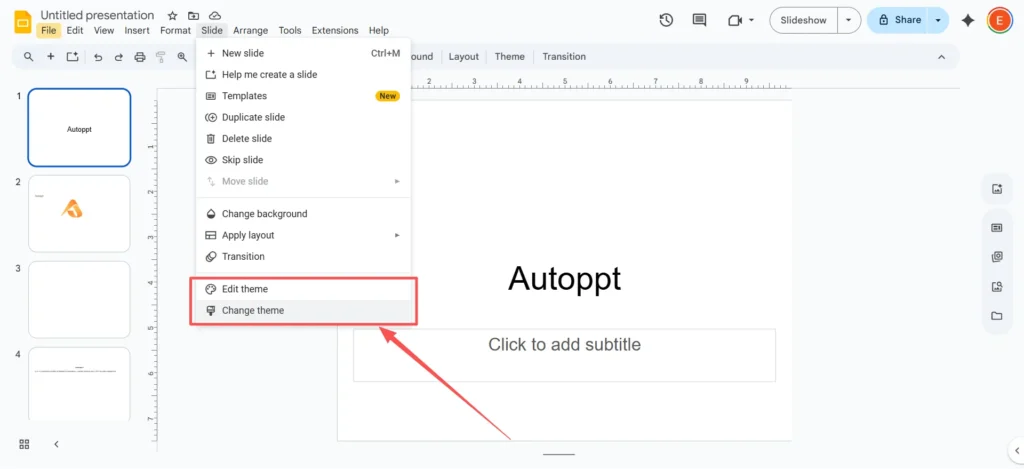
In the top menu, click
Slide. -
From the dropdown, select
Change theme.
-
A “Themes” panel will appear on the right. Scroll through this list. You should see all the original Google Slides templates like “Simple Light,” “Simple Dark,” and “Material.”

-
Click on “Simple Light” (or any default theme). This will instantly apply the original template and all its layouts to your presentation.
Step 3: What if My Slides Still Look Weird? (Reset Layouts)
Sometimes, applying a new theme doesn’t fix a slide that’s already been heavily edited. If your text boxes and titles are still in the wrong place, you just need to re-apply the layout.
-
Click on the single slide that looks wrong.
-
Go to the top menu and click
Slide. -
Hover over
Apply layout. -
You’ll see a list of standard layouts like “Title slide,” “Title and body,” or “Section header.”

-
Select the layout that matches your content (e.g., “Title and body”). This will “snap” your text and content back into the theme’s default placeholders.
Step 4: The Fix for Work/School Accounts (Know Your Options)
If you’re on a Workspace account, clicking
Slide > Change theme will likely only show your company’s branded templates. This is by design. You have two main options:-
Option 1 (The “Import” Workaround): If you have an old presentation that uses a default theme, you can “steal” it. In the “Themes” panel, look at the very bottom and click the
Import themebutton. You can then find an old presentation on your drive and import its “Simple Light” theme. -
Option 2 (Talk to IT): Your administrator is the only one who can change this setting. You can ask your IT department if they can either re-enable the standard Google template gallery or provide a company template that is more flexible.
Step 5: The “Last Resort” Fix (Clear Your Browser Cache)
If you’re on a personal account and Step 2 still doesn’t work, a confused cache is the likely culprit. Clearing it gives your browser a fresh start.
Here’s how to do it in Google Chrome:
-
Click the three-dot menu in the top-right corner.
-
Go to
Clear browsing data.... -
In the new window, make sure the “Time range” is set to “All time.”
-
Important: You only need to check the box for
Cached images and files. You can uncheck “Cookies” and “Browsing history” if you don’t want to be logged out of other websites. -
Click
Clear data.
Reload Google Slides, and your template gallery should be back to normal.
Extra Tips for Customization (Now That You Have Them Back)
Now that you’ve restored the default templates, you might want to customize them so you don’t have to fix fonts and colors on every single slide. The secret to this is the Theme Builder.
The Theme Builder (which used to be called the “Master Slide”) is the engine behind your template. Changes you make in the Theme Builder apply to all your slides at once.
-
In the top menu, click
View. -
Select
Theme Builder.

-
A new view will open. On the left, you’ll see one “Master” slide at the top, with all the individual layouts (Title, Body, etc.) nested below it.
-
To change all fonts at once: Click the top “Master“ slide. Select the title text and change the font. Then select the body text and change its font. This will update the font on every layout automatically.

-
Click the “X” in the top-right corner to close the Theme Builder.
This one tip can save you hours in the future.
Try Autoppt: A Smarter Way to Design Slides
Let’s be honest. Even after you restore the original Google Slides templates, you might feel… underwhelmed. The default templates are clean, but they’re also a bit boring, and your audience has seen them a thousand times.
If you’ve tried everything and are still tired of the default look, tools like Autoppt can save you a massive amount of time.
Autoppt offers a large library of beautiful PowerPoint templates and Google Slides themes that are professionally designed and easy to customize. You can find a unique, modern look for any type of presentation, from business reports to school projects.
But here’s the real game-changer: Autoppt also has AI-powered presentation generation tools.
Instead of just giving you a template, you can type a topic (like “Quarterly Sales Report” or “The History of the Roman Empire”) or even upload a Word or PDF document. Autoppt’s AI will then generate a full, ready-to-present slideshow in seconds. It writes the content, finds images, and designs the layouts for you.
It’s a great option for anyone who wants professional results fast and wants to boost their productivity.
Final Thoughts
Finding your Google Slides templates missing is a hassle, but it’s almost always a quick fix. Whether it’s a simple theme reset on your personal account or a branding setting on your work account, you’re now equipped to handle it.
And if you’re tired of the default look, remember that you’re not stuck. You can use the Theme Builder to create your own style or use an AI presentation tool like Autoppt to do all the heavy lifting for you.
Create worry-free presentations with AutoPPT . Turn your ideas into slides quickly—while keeping them 100% yours!
About AutoPPT: An easy use AI tool for students and professionals. Generate editable slides, customize designs, and focus on what matters—your unique ideas.

Autoppt: Generate presentations in 1 minute!
Start Free Trail Now