


Maggie Tsui
Co-founder, CEO of Autoppt. An office software enthusiast committed to improving workplace productivity. I love sharing tips and tools that make daily tasks easier and faster.
Introduction
We have all been there: you receive a critical business contract or a resume in PDF format, but you spot a typo that needs fixing immediately. Because PDFs are designed to be “read-only” digital paper, you cannot simply click and type to make changes. This is where PDF to Word conversion becomes a lifesaver. Instead of retyping the entire document from scratch, modern conversion tools allow you to transform that static image into a fully editable text file in seconds. In this guide, we will explore exactly how this process works and review the top tools you can trust in 2026.

What Does It Mean to Convert PDF to Word?
Converting a PDF to Word means transforming a fixed-layout document into a fluid, editable word-processing file. While a PDF locks text and images into specific coordinates for printing, a Word document (DOC or DOCX) allows content to flow dynamically. The conversion process unlocks this static content, enabling you to modify text, adjust formatting, and rearrange elements just as if you had created the file in Microsoft Word originally.
Most users assume a PDF is just a picture of text, but it actually contains complex code defining where every letter sits. A converter’s job is to read that code and translate it into Microsoft Word’s language. This allows you to regain control over the content. It is the difference between looking at a printed flyer behind glass and holding the original draft in your hands, ready to be marked up with a pen.
Why Do People Convert PDFs to Word Files?
People convert PDFs to Word primarily to edit content that is otherwise locked or difficult to modify. Whether it is a student needing to update a bibliography, a lawyer revising a contract clause, or an employee repurposing an old report, conversion saves hours of manual retyping. It bridges the gap between viewing a final document and working on a “living” draft, ensuring productivity and accuracy in professional workflows.
Common Use Cases:
-
Resumes: updating work history on an old CV saved only as a PDF.
-
Legal Contracts: Negotiating terms by editing a draft agreement directly.
-
Academic Work: Extracting quotes or data tables for a thesis or assignment.
-
forms: Filling out non-interactive forms that were scanned or saved incorrectly.
How Does PDF to Word Conversion Work?
PDF to Word conversion works by analyzing the visual structure of a PDF and mapping it to a Microsoft Word format. The software scans the document to identify text blocks, fonts, images, and tables. It then attempts to rebuild this layout using Word’s logic, converting fixed coordinates into paragraphs and columns. For scanned documents, it uses Optical Character Recognition (OCR) to recognize shapes of letters and turn them into digital text.
Think of it as a translator who is not just translating the language, but also the design. The software looks at a heading and says, “This is bold, size 14, Arial,” and tells Word to replicate that style. The quality of the conversion depends on how well the tool interprets complex elements like floating images or invisible tables. Simple text converts easily, but intricate layouts require advanced algorithms to prevent the document from breaking apart.
Top 5 Tools for Fast & Accurate PDF to Word Conversion in 2026
Finding the best converter depends on balancing speed, accuracy, and cost for your specific needs. In 2026, the market is crowded, but only a few tools truly handle complex layouts without errors. We have selected the top five industry leaders that consistently deliver clean, editable Word documents, ranging from premium professional software to quick, accessible online solutions.
-
Adobe Acrobat Pro DC

Adobe Acrobat Pro DC remains the industry standard because it offers the most accurate conversion engine available today. As the creator of the PDF format, Adobe understands the underlying code better than anyone else, ensuring that complex formatting, fonts, and tables are preserved perfectly. It is the ideal choice for professionals who need pixel-perfect results and are willing to pay for a premium subscription to avoid layout errors.
Best For: Professionals and businesses requiring 100% accuracy.
Key Feature: Its OCR (Optical Character Recognition) is unmatched, easily turning blurry scans into crisp, editable text.
-
Microsoft Word
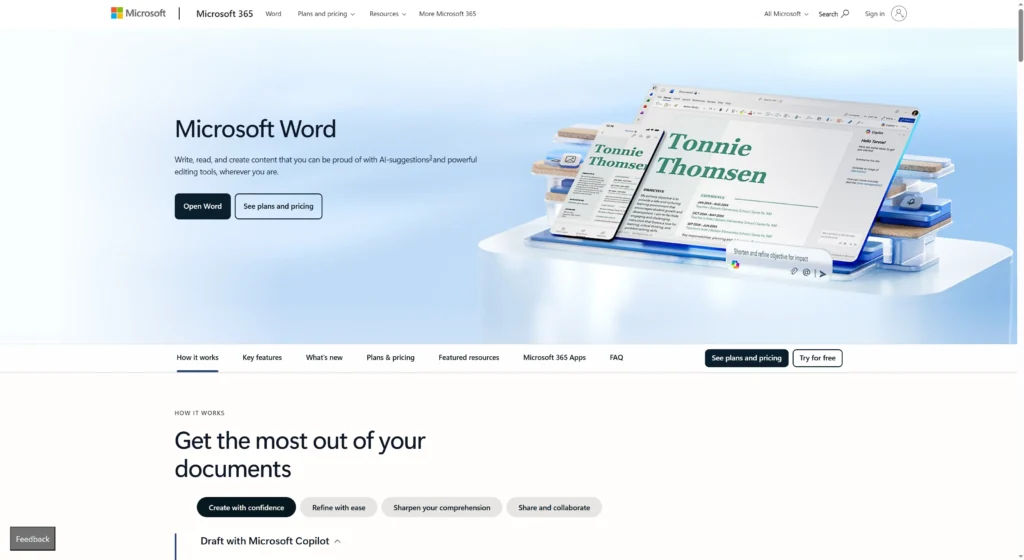
Microsoft Word is often the most overlooked conversion tool because many users do not realize it has a built-in PDF opener. If you already own Office, you can simply right-click a PDF and “Open with Word” to convert it instantly without extra software. While it may struggle with heavy graphics, it is excellent for text-heavy documents like reports or essays and requires absolutely no additional downloads or fees.
Best For: Quick, text-based conversions for users who already have Office.
Key Feature: “Reflow” technology optimizes the PDF text to fit your current Word view, making it easier to read and edit immediately.
-
Smallpdf

Smallpdf is a favorite for users who need a fast, user-friendly online interface without installing heavy software. It operates entirely in your browser, allowing you to drag and drop files for quick conversion in seconds. It is famous for its clean design and ability to handle cloud files directly from Google Drive or Dropbox, making it the perfect “grab-and-go” tool for students and freelancers.
Best For: Quick, one-off tasks and users who prefer a simple, browser-based experience.
Key Feature: Seamless integration with cloud storage and a mobile app for converting files on your phone.
-
iLovePDF

iLovePDF stands out by offering a generous free tier that is robust enough for most casual users’ daily needs. It separates itself from competitors by providing specific tools for different PDF tasks, including a dedicated, high-speed PDF to Word converter. It is incredibly reliable for batch processing, allowing you to upload and convert multiple files at once, which is a massive time-saver for administrative tasks.
Best For: Bulk conversion and users looking for a reliable free option.
Key Feature: Excellent batch processing capabilities that let you convert ten files as easily as one.
-
Nitro Pro
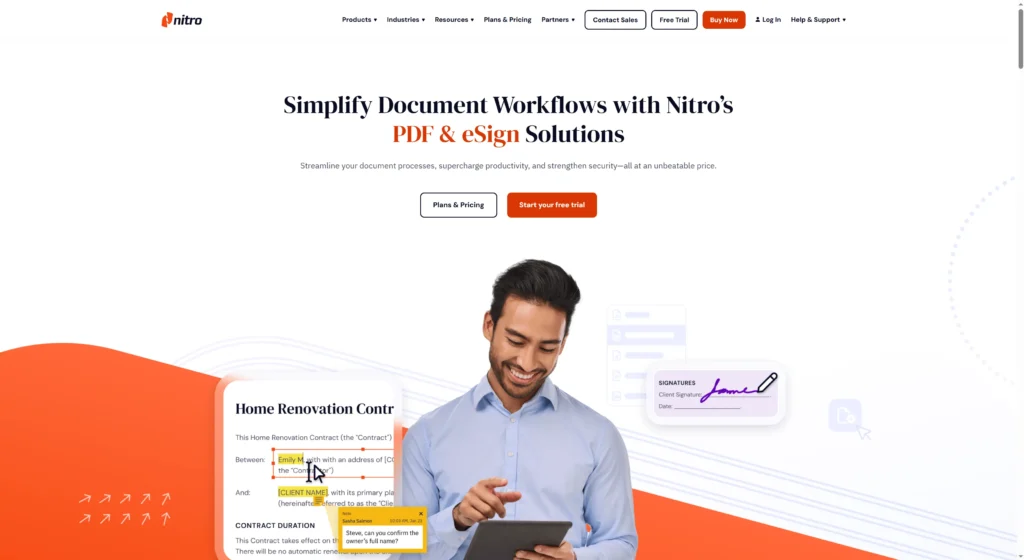
Nitro Pro is a powerful desktop alternative to Adobe that focuses heavily on productivity and office workflows. It is designed to look and feel exactly like Microsoft Office, making it intuitive for anyone familiar with Word or Excel. Nitro excels at maintaining the original layout of documents, ensuring that your converted file looks exactly like the PDF, which is critical for preserving branding in business presentations.
Best For: Business users who want a perpetual license or a cheaper alternative to Adobe. Key Feature: A familiar “ribbon” interface that mimics Microsoft Office, reducing the learning curve for new users.
How to Choose the Right PDF to Word Converter
Choosing the right converter comes down to the complexity of your document and how often you need to convert files. If you work with simple text documents occasionally, free online tools or Microsoft Word itself are sufficient. However, if you handle complex legal scans, heavy tables, or sensitive client data daily, investing in paid desktop software like Adobe or Nitro is necessary to ensure security and formatting accuracy.
Selection Checklist:
-
Security: Does the tool delete your files after conversion? (Critical for legal/medical docs).
-
OCR Needs: Is your PDF a scanned image? If yes, you must have a tool with OCR.
-
Layout Complexity: Does your file have many columns and images? Avoid basic free tools.
-
Volume: Do you need to convert one file a month or 50 files a day?
Common PDF to Word Conversion Problems and Fixes
Conversion is rarely magic; users often encounter issues like broken fonts, shifted images, or bizarre line breaks. These problems occur because the converter misunderstands the fixed “coordinates” of the PDF text, placing them incorrectly in Word’s flow. Understanding these common glitches helps you troubleshoot quickly, usually by adjusting the source file or simply choosing a more advanced tool that handles “floating” elements better.
Quick Fixes:
-
Broken Line Breaks: Use the “Find and Replace” tool in Word to remove unnecessary paragraph marks (^) that break up sentences.
-
Missing Fonts: Ensure you have the fonts used in the PDF installed on your computer, or the converter will substitute them with generic ones like Arial.
-
Weird Spacing: Turn on “Show/Hide ¶” in Word to see if the converter used spaces instead of tabs to align text. Delete the extra spaces.
-
Non-Editable Text: This means the PDF was a scan. Re-convert using a tool that specifically mentions “OCR” support.
FAQ
-
Is it safe to convert sensitive legal PDFs online?
For highly sensitive documents, it is safer to use offline desktop software like Adobe or Nitro. Reputable online tools delete files after an hour, but desktop software ensures the file never leaves your computer. -
Why can’t I edit the text after converting my PDF?
If the text is still an image in Word, your original PDF was likely a scan. You need to use a converter with OCR (Optical Character Recognition) to turn that image into editable letters. -
Can Microsoft Word convert PDF to Word without extra software?
Yes, modern versions of Word (2013 and later) can open PDFs directly. Right-click the PDF, select “Open with,” and choose Word. It works best for text-heavy files. -
Will the formatting stay exactly the same?
High-end tools like Adobe Acrobat preserve formatting almost perfectly. Free tools may struggle with complex layouts, causing images to shift or fonts to change slightly. -
What is the difference between DOC and DOCX?
DOC is the older Word format (pre-2007), while DOCX is the modern standard. DOCX is smaller, less prone to corruption, and better for converting complex formatting from PDFs.
Conclusion
Converting a PDF to Word in 2026 is no longer a frustrating technical challenge but a simple daily task thanks to advanced tools. Whether you choose the industry-leading power of Adobe Acrobat, the convenience of Smallpdf, or the built-in capability of Microsoft Word, the right tool can save you hours of retyping. By understanding how these tools work and which one fits your workflow, you can turn any static “digital paper” into a flexible, living document ready for your best ideas.
Create worry-free presentations with AutoPPT . Turn your ideas into slides quickly—while keeping them 100% yours!
About AutoPPT: An easy use AI tool for students and professionals. Generate editable slides, customize designs, and focus on what matters—your unique ideas.

Autoppt: Generate presentations in 1 minute!
Start Free Trail Now