


Maggie Tsui
Co-founder, CEO of Autoppt. An office software enthusiast committed to improving workplace productivity. I love sharing tips and tools that make daily tasks easier and faster.
Introduction
Large PDF files can be a major headache. Whether you are trying to email a report that exceeds the 25MB limit or uploading a portfolio to a website, a heavy file slows everything down. Fortunately, compressing a PDF is a quick and simple solution that solves these problems instantly. In this guide, we will explain exactly how compression works, the best methods to use, and the top 5 tools in 2026 to help you shrink your files without ruining their quality.
What Does It Mean to Compress a PDF?
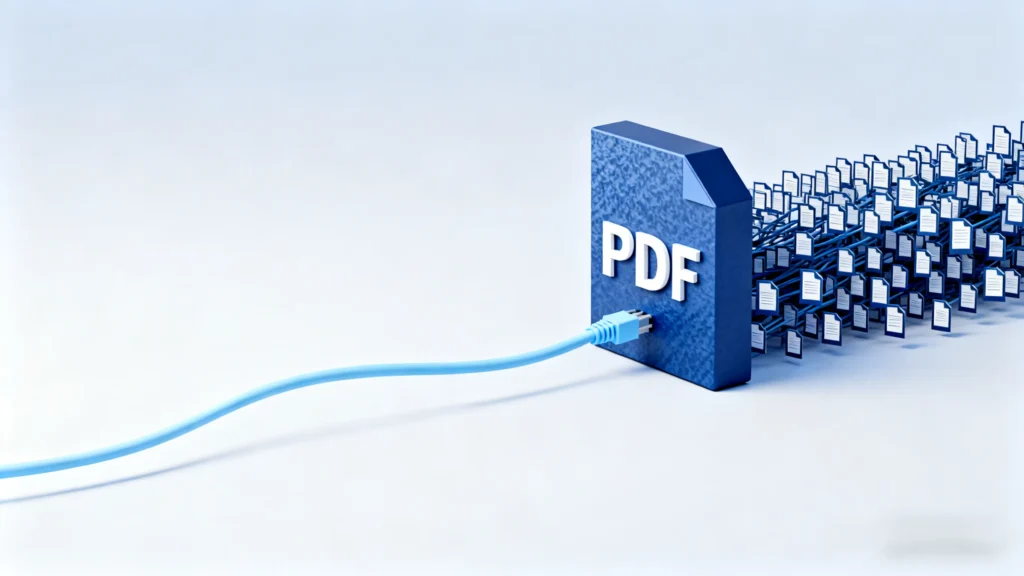
PDF compression is the process of reducing the file size of a document by removing unnecessary data and optimizing the remaining elements. When you compress a PDF, the software looks for redundant information, such as hidden metadata or repeated patterns, and eliminates it. It also lowers the resolution of images and simplifies fonts. The goal is to make the file significantly lighter to store and share while keeping the text and visuals readable for the user.
Think of a PDF like a packed suitcase. If you throw everything in loosely, it takes up a lot of space. Compression is like folding your clothes neatly and taking out items you don’t really need. The contents are largely the same, but they fit into a much smaller space.
Technically, this happens through two main methods:
-
Lossless Compression: This tidies up the data without deleting anything important. It shrinks the file slightly but keeps the quality 100% perfect.
-
Lossy Compression: This is more aggressive. It lowers the quality of images (for example, dropping a photo from “print quality” to “screen quality”) to get a massive reduction in file size.
Why Are PDF Files Often So Large?
PDF files usually become large because they contain high-resolution images, embedded fonts, and uncompressed graphics that take up significant storage space. A single page scanned at a high quality can be several megabytes on its own. Additionally, if a PDF includes multiple custom fonts, the file must store the data for every letter style to ensure it looks the same on all devices. Hidden data, like old version history and metadata, also adds invisible weight to the document.
The most common culprits for a bloated PDF include:
-
High-Resolution Images: Photos meant for printing are often 300 DPI (dots per inch). For viewing on a screen, you only need about 72 DPI. The extra detail is wasted space.
-
Embedded Fonts: When you use unique fonts, the PDF saves the entire font file inside the document so the receiver can see it correctly.
-
Vector Graphics: Complex charts and diagrams created in design software can contain thousands of individual paths and data points.
How Can You Compress a PDF Safely?
The safest way to compress a PDF is to use a reputable tool that creates a copy of your file rather than overwriting the original document. You should look for software that offers encryption (like SSL) if you are uploading files online, ensuring no one else can read your data. Always check the privacy policy to see if the service deletes your files after processing. For sensitive documents like bank statements or legal contracts, it is often safer to use offline desktop software instead of a web-based converter.
Here are the standard steps for safe compression:
-
Back Up Your File: Before you do anything, save a copy of your original high-quality PDF. Once you compress a file, you often cannot “un-compress” it to get the original quality back.
-
Choose the Right Method: If you have sensitive data, download a desktop tool. If it is a generic school assignment, a free online tool is fine.
-
Review the Result: After compressing, open the new file and zoom in on the images. Ensure the text is sharp and the photos are not blurry.
Top 5 Tools to Reduce PDF File Size in 2026
-
Adobe Acrobat Online (Best for Reliability)

Adobe Acrobat Online is the industry standard for PDF compression, offering the most reliable balance between file reduction and document quality. Because Adobe invented the PDF format, their algorithms are exceptionally good at shrinking files without making them look “pixelated” or blurry. It is an ideal choice for professional users who need to ensure their documents look perfect for clients. While the free online version has limits, it remains the most trusted tool available.
-
Pros: High-quality results, trusted privacy and security, consistent text rendering.
-
Cons: The free version has daily limits; advanced features require a paid subscription.
-
Best For: Important business documents where quality cannot be compromised.
-
Smallpdf (Best for Ease of Use)

Smallpdf is a user-friendly online tool designed for simplicity, making it the best choice for everyday users who need to compress a file quickly. The interface is colorful, clean, and incredibly intuitive—you simply drag and drop your file, and the tool does the rest. It offers a “Basic Compression” mode that reduces file size by about 40% while maintaining good quality, which is perfect for emails. It works entirely in your browser, so there is nothing to install.
-
Pros: Very easy to use, fast processing, works on any device (phone or laptop).
-
Cons: Free users can only process a limited number of files per day.
-
Best For: Students and casual users who need a quick fix.
-
iLovePDF (Best for Customization)

iLovePDF is a versatile platform that gives users three distinct compression levels, allowing you to choose exactly how much quality you are willing to trade for size. Unlike many one-click tools, iLovePDF lets you select “Less Compression” (high quality), “Recommended Compression” (good balance), or “Extreme Compression” (smallest size, lower quality). This flexibility is excellent when you are struggling to meet a very strict upload limit, such as a 2MB cap on a job application portal.
-
Pros: Offers three specific compression levels, completely free for basic use, supports batch processing.
-
Cons: “Extreme” compression can make images look quite blurry.
-
Best For: Users who need to hit a specific file size target.
-
PDFgear (Best Free Desktop Software)

PDFgear is a powerful, completely free desktop software for Windows and Mac that offers premium compression features without watermarks or hidden costs. In 2026, it stands out because it does not require an internet connection to work, making it safer for private documents. It allows for batch compression, meaning you can shrink 50 files at once, and it uses advanced AI to optimize the files efficiently. It is a rare tool that is genuinely free and robust.
-
Pros: 100% free, no internet needed (offline), batch processing, no watermarks.
-
Cons: Requires downloading and installing software.
-
Best For: Users with many files or sensitive documents who want a free offline solution.
-
UPDF (Best Modern AI Tool)

UPDF is a modern, fast-growing PDF editor that uses AI technology to compress files quickly while offering a sleek and responsive interface. It is a paid tool (with a free trial) that focuses on speed and design, making it a great alternative to older, clunkier software. UPDF allows you to choose specific compression qualities and works seamlessly across Windows, Mac, iOS, and Android with a single license. It is excellent for tech-savvy users who want a modern experience.
-
Pros: Fast performance, modern design, works on all devices, affordable one-time purchase options.
-
Cons: Free trial adds a watermark to your saved files.
-
Best For: People looking for a modern, fast, and multi-platform PDF editor.
How to Choose the Right PDF Compression Tool
Choosing the right tool depends entirely on your specific needs regarding security, internet access, and how much quality you can afford to lose. If you are working with public documents like a school flyer, online tools like Smallpdf are fastest. However, if you are handling confidential legal agreements or client financial data, you should always choose offline desktop software like PDFgear or Adobe Acrobat Pro to avoid uploading sensitive data to the cloud.
Consider these factors before choosing:
-
Security: Online vs. Offline. Online is convenient, but offline is safer.
-
Volume: Do you have one file or one hundred? Online tools usually limit you to one file at a time unless you pay. Desktop tools handle batches better.
-
Budget: Do you need a free solution, or are you willing to pay for higher quality and fewer limits?
Common PDF Compression Mistakes to Avoid
The most common mistake users make is over-compressing a file to the point where text becomes unreadable and images become pixelated blocks. It is easy to get carried away trying to make a file as small as possible, but if the recipient cannot read your graph or see the details in your photo, the document is useless. Another critical error is saving the compressed version over the original file, leaving you with no way to recover the high-quality master copy if you need it later.
Watch out for these pitfalls:
-
Overwriting the Original: Always use “Save As” and rename your file (e.g.,
Report_Compressed.pdf). -
Ignoring Visuals: If your PDF is for printing, do not use “Extreme” compression. It will look terrible on paper.
-
Trusting Unknown Sites: Be wary of sketchy, ad-filled websites that promise “free” services but might infect your computer or steal your data.
FAQ
-
Does compressing a PDF affect its quality?
Yes, usually. To reduce file size, the tool reduces the quality of images. However, if you choose “medium” or “recommended” settings, the difference is usually not noticeable to the human eye on a screen. -
Is it safe to use online PDF compressors?
Generally, yes. Reputable sites like Adobe and Smallpdf use encryption and delete your files after a few hours. However, for highly sensitive documents (like tax forms), it is safer to use offline desktop software. -
Why didn’t my PDF file size get smaller?
If your PDF is mostly text with no images, there is very little to compress. Compression works best on files that are heavy with images and graphics. -
Can I compress a PDF on my phone?
Yes. Websites like iLovePDF and Smallpdf work in mobile browsers. Also, apps like UPDF and PDFgear are available for iOS and Android. -
How do I check the size of my PDF?
On Windows, right-click the file and select Properties. On a Mac, right-click (or Control-click) and select Get Info. Look for the number next to “Size.”
Conclusion
Compressing a PDF is an essential skill in 2026. Whether you need to bypass email attachment limits or save storage space, the right tool makes the process effortless. By understanding how compression works and avoiding common mistakes like overwriting your originals, you can ensure your documents remain professional and accessible. Start with a trusted online tool for quick tasks, or download a dedicated desktop application for secure, heavy-duty work.
Create worry-free presentations with AutoPPT . Turn your ideas into slides quickly—while keeping them 100% yours!
About AutoPPT: An easy use AI tool for students and professionals. Generate editable slides, customize designs, and focus on what matters—your unique ideas.

Autoppt: Generate presentations in 1 minute!
Start Free Trail Now