


Maggie Tsui
Co-founder, CEO of Autoppt. An office software enthusiast committed to improving workplace productivity. I love sharing tips and tools that make daily tasks easier and faster.
Introduction
Editing a PDF used to be a frustrating task that required expensive software. In 2026, it is much easier. Whether you need to fix a typo in a contract, update your resume, or swap an image in a presentation, modern tools make it simple. This guide explains exactly how to edit PDF files and reviews the top 5 tools you can use right now, from free online options to powerful desktop programs.

What Does It Mean to Edit a PDF?
Editing a PDF means you can change the actual content inside the file, just like you would in a Word document. Instead of just adding notes on top, you can modify existing text, delete sentences, resize images, or rearrange entire pages. Modern editors also let you fill out forms, sign documents digitally, and fix layout problems without needing to convert the file to another format first.
Key capabilities of modern PDF editors:
-
Text Editing: Correcting spelling errors or rewriting paragraphs.
-
Image Control: Moving, resizing, or replacing pictures.
-
Page Management: Reordering, deleting, or rotating pages.
-
Forms & Signatures: Filling in boxes and adding legal signatures.
Why Is Editing a PDF Often Difficult?
Editing a PDF is difficult because the format was originally designed to lock content in place, not to be changed. Unlike a Word document where text flows freely, a PDF places every letter and image in a fixed spot to ensure it looks the same on every device. This “digital paper” structure means that when you try to move one word, the rest of the paragraph doesn’t automatically adjust, often causing messy layout issues.
Common frustrations include:
-
Font Mismatches: The editor might not have the original font, making your edits look obvious and unprofessional.
-
Layout Breaks: Moving an image might leave a blank white space or cover up text.
-
Scanned Files: If your PDF is a scan of a paper document, the computer sees it as a picture, not text, so you cannot type over it without special OCR (Optical Character Recognition) technology.
How Can You Edit a PDF Easily?
To edit a PDF easily, you need to choose a tool that matches your specific goal, such as a quick text fix or a full document redesign. For simple text changes, online editors allow you to upload a file and type directly into it through your web browser. for heavy-duty work, like editing a 50-page contract or a scanned image, downloading desktop software is usually faster and more reliable.
Step-by-Step Guide for Most Tools:
-
Open the Editor: Go to an online site (like Sejda) or open your desktop app (like Acrobat).
-
Upload Your File: Drag and drop your PDF into the editing area.
-
Select “Edit” Mode: Look for a button that says “Edit,” “Text,” or a pencil icon.
-
Click and Type: Click on the text you want to change. A text box will appear.
-
Save/Export: Always save your new file as a PDF to keep your changes.
Top 5 Tools for Easy PDF Editing in 2026
-
Adobe Acrobat Pro (Best for Professional Power Users)

Adobe Acrobat Pro is the industry standard because it offers the most complete set of editing features available today. It is the best choice if you need to edit scanned documents, create complex forms, or ensure your fonts match perfectly. While it requires a paid subscription, it provides unmatched reliability for business documents and works seamlessly on both desktop computers and mobile devices.
-
Best For: heavy business use, legal contracts, and scanned files.
-
Pros: precise text matching, powerful security tools, excellent mobile app.
-
Cons: expensive monthly subscription; can feel complicated for beginners.
-
Sejda PDF (Best for Quick, Free Online Edits)

Sejda is the best user-friendly option for people who need to make a quick edit without installing software. It runs entirely in your web browser and offers a clean, simple interface that lets you edit text, add links, and fill forms instantly. It is free to use for smaller files and occasional tasks, making it perfect for personal projects or one-off edits.
-
Best For: quick edits, merging files, and users who don’t want to install software.
-
Pros: no account required for free tasks, very easy to use, works on any computer.
-
Cons: limits on file size and number of daily tasks for free users; less powerful for complex layouts.
-
PDFgear (Best Free Desktop Software)

PDFgear is a fantastic choice for Windows and Mac users who want a powerful editor completely for free. Unlike many other “free” tools, it does not add watermarks to your files and offers advanced features like AI summarization and direct text editing. It is a lightweight program that handles large files well, making it a great alternative to expensive paid software.
-
Best For: students, budget-conscious freelancers, and anyone needing a 100% free desktop tool.
-
Pros: completely free, no watermarks, includes AI tools to chat with your PDF.
-
Cons: the interface is simple but lacks some of the high-end design tools found in Adobe.
-
Foxit PDF Editor (Best Lightweight Alternative to Adobe)

Foxit PDF Editor is widely known for being a fast, lightweight, and cost-effective alternative to Adobe Acrobat. It provides almost all the same professional editing features—like text reflow and advanced security—but often runs faster on older computers and costs less. It is highly trusted by businesses that need robust editing capabilities without the heavy system requirements of larger programs.
-
Best For: small businesses and office workers who need professional tools at a lower price.
-
Pros: familiar “Microsoft Word-style” ribbon interface, fast performance, good value.
-
Cons: the free trial adds watermarks; the interface can look a bit cluttered.
-
Canva (Best for Visually Designing PDFs)
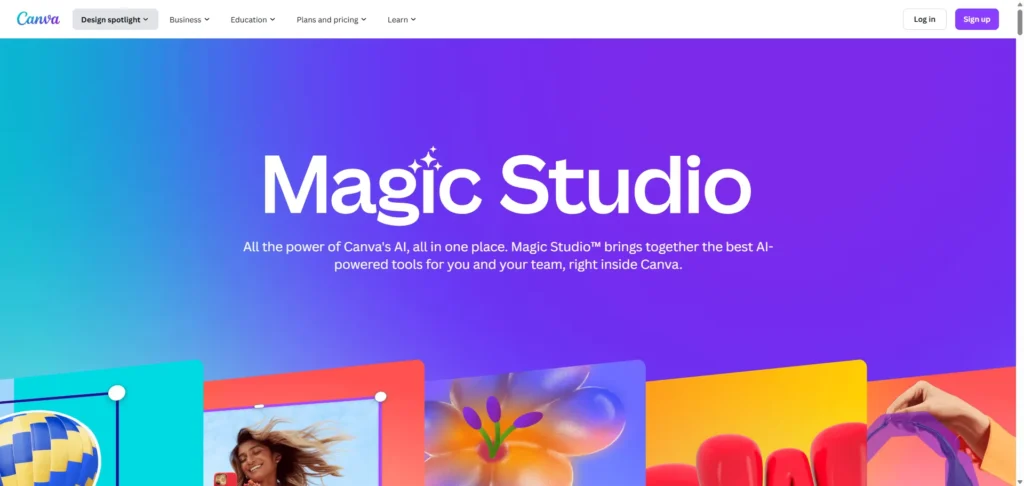
Canva is unique because it treats PDFs more like graphic design projects than standard documents. It is excellent for editing visual PDFs like brochures, flyers, resumes, and presentations. Instead of just fixing typos, you can completely change the color scheme, add stock photos, and redesign the layout using drag-and-drop tools, making it the creative person’s favorite editor.
-
Best For: resumes, marketing materials, flyers, and creative portfolios.
-
Pros: massive library of graphics and fonts, extremely easy drag-and-drop interface.
-
Cons: not good for text-heavy documents like contracts or books; can mess up strict formatting.
How to Choose the Right PDF Editor
Choosing the right PDF editor depends entirely on how often you edit files and what kind of documents you handle. If you only edit a file once every few months, a free online tool is sufficient and saves you money. However, if you work with confidential contracts, large scanned files, or edit documents daily for your job, investing in paid desktop software is safer and more efficient.
Quick Decision Guide:
-
Need to fix one typo? Use Sejda (Online).
-
Need to redesign a resume? Use Canva.
-
Need to edit a 50-page legal scan? Use Adobe Acrobat Pro or Foxit.
-
Need a free tool for school? Use PDFgear.
Common PDF Editing Mistakes to Avoid
A common mistake when editing PDFs is failing to save a copy of the original file before you start working. If you accidentally delete a paragraph or mess up the formatting, it can be very difficult to “undo” changes after saving, especially if the file overwrites the original. Always duplicate your file first so you have a safe backup version to return to if things go wrong.
Watch out for these errors:
-
Using the Wrong Font: If the editor substitutes a font, your document will look fake. Always check the text style.
-
Ignoring Layout Shifts: Adding a long sentence might push text onto a new page, breaking the document flow.
-
Editing Signed Files: Once a PDF is digitally signed, editing it will often invalidate the signature.
-
Over-compressing: Saving a file to be too small can make images look blurry and professional text look unreadable.
FAQ
-
Can I edit a PDF for free?
Yes. Tools like Sejda (online) and PDFgear (desktop) allow you to edit text and images for free. However, online tools often have daily limits. -
Why can’t I edit the text in my PDF?
This usually happens if the PDF is a scanned image or if the file is password-protected by the owner. You may need an editor with OCR (text recognition) features. -
Is it safe to edit PDFs online?
Generally, yes. Reputable sites delete your files after a few hours. However, for highly sensitive documents (like bank statements or IDs), it is safer to use offline desktop software. -
Can I edit a PDF in Microsoft Word?
Yes, but with mixed results. Word can open and convert PDFs, but the formatting often gets messy. It works best for simple text documents, not complex forms. -
How do I remove a page from a PDF?
Most editors have a “Page” or “Organize” tab. You can simply click on the page thumbnail you want to remove and hit the delete icon.
Conclusion
Editing a PDF in 2026 is no longer a difficult technical challenge. With powerful free tools like PDFgear and intuitive online options like Sejda, anyone can fix a typo, sign a form, or update a resume in minutes. The key is to pick the tool that fits your needs—whether you need a quick online fix or a professional desktop suite. Start by trying a free tool today, and you’ll see just how easy managing your digital documents can be.
Create worry-free presentations with AutoPPT . Turn your ideas into slides quickly—while keeping them 100% yours!
About AutoPPT: An easy use AI tool for students and professionals. Generate editable slides, customize designs, and focus on what matters—your unique ideas.

Autoppt: Generate presentations in 1 minute!
Start Free Trail Now