


Michael Anderson
Former journalist turned tech writer with a passion for helping professionals enhance productivity through AI.
Introduction
Editing photos used to mean spending hours learning complex software. But in 2026, artificial intelligence has changed everything. AI image editing tools can now remove backgrounds, erase unwanted objects, and even generate entirely new parts of your image with just a few clicks. The market for these tools is booming, with projections showing it could grow to over $66 billion by 2032 .
In this guide, we’ll walk you through the 10 best AI image editing tools to try this year. We’ve tested both free and paid options to help you find the perfect fit, whether you’re a professional photographer or just want to spice up your social media posts.
What to Look for in an AI Image Editor in 2026
With so many tools on the market, it can be tough to choose. Here are five key things to consider before you pick one:
-
Speed & Real-Time Results: The best tools apply edits almost instantly. You shouldn’t have to wait minutes for a simple background removal or object erase.
-
Privacy (Local vs. Cloud): Does the tool upload your photos to a server, or can it edit them offline on your computer? Desktop apps often offer better privacy, which is important for sensitive work.
-
Output Quality: Look for tools that can export high-resolution images without a watermark, even on free plans. The AI edits should look natural, not fake or “plasticky.”
-
Price Flexibility: A good tool offers options. A free plan is great for trying things out, while flexible subscriptions or one-time purchase options provide better long-term value.
-
Ease of Use: You shouldn’t need a technical degree to use it. The best AI editors have simple, clean interfaces that make powerful features accessible to everyone.
Top 10 AI Image Editing Tools of 2026
Here are our top picks for the best AI-powered editors available right now. We’ve personally reviewed each one to give you the pros, cons, and a quick tip to get you started.
-
Adobe Photoshop – Best for Professionals

Adobe Photoshop is the king of image editing, and its AI features are second to none. Powered by its Firefly AI model, tools like Generative Fill and Generative Expand let you add, remove, and extend your images with simple text prompts. Because Firefly was trained on Adobe’s licensed stock library, its outputs are commercially safe to use . It’s the most powerful tool on this list, but it comes with a steep learning curve and a subscription-only price.
-
Features: Generative Fill, Generative Expand, AI-powered Remove Tool, Neural Filters, Sky Replacement.
-
Pricing: Requires a subscription (Photography Plan starts at $9.99/month).
-
Pros: Unmatched power and creative control; industry-standard tool.
-
Cons: Expensive subscription models can be overwhelming for beginners.
-
Usage Tip: Use the Generative Expand tool to instantly turn a vertical photo into a horizontal one by letting AI create new content on the sides.
-
Privacy Note: Processes generative AI features on Adobe’s cloud servers.
-
Luminar Neo – Best for Creative Photographers

Luminar Neo is a powerful desktop editor that puts creative AI tools front and center. It makes complex tasks like replacing a sky or retouching a portrait incredibly simple. Unlike Photoshop, Luminar Neo is available as a one-time purchase, making it a great value for photographers who want to avoid monthly fees .
-
Features: Sky AI, GenErase, GenSwap, Portrait AI, Enhance AI.
-
Pricing: Subscription ($11.95/mo) or a perpetual license (starts at $119).
-
Pros: Fantastic creative AI tools; available as a one-time purchase.
-
Cons: Can be slow on older computers; lacks advanced photo organizing features.
-
Usage Tip: Use the “Sunrays” tool to add realistic beams of light to your landscape photos for a dramatic effect.
-
Privacy Note: A desktop application that processes all images locally and works completely offline.
-
Canva – Best Free Tool for Social Media
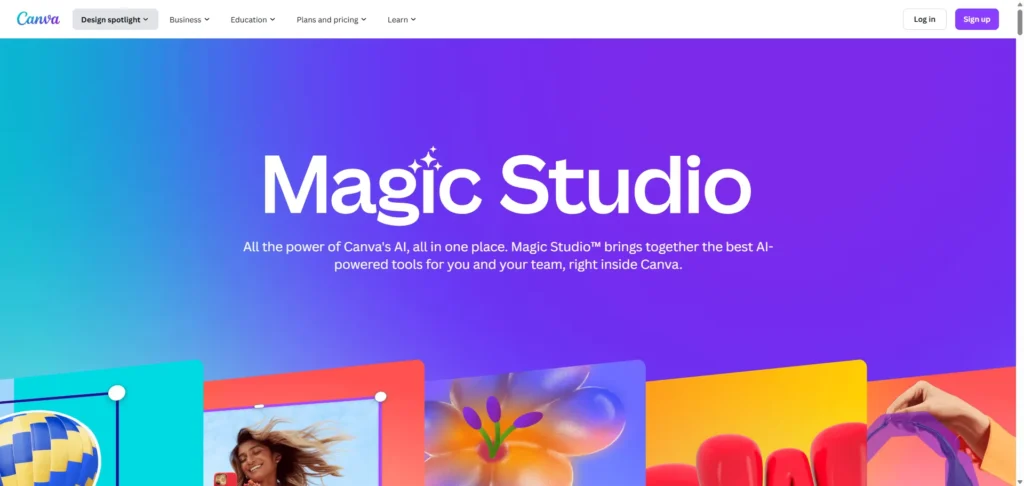
Canva is more than just a photo editor; it’s an all-in-one design platform perfect for content creators. Its “Magic Studio” includes a suite of AI tools like Magic Eraser and Magic Edit that are incredibly easy to use. While its free version is very generous, the most powerful AI features require a Pro subscription.
-
Features: Magic Eraser, Magic Edit, Background Remover (Pro), Magic Design.
-
Pricing: Free plan available; Canva Pro starts at $15/month.
-
Pros: Extremely easy for non-designers; huge library of templates.
-
Cons: Best AI tools are behind a paywall; limited control compared to dedicated editors.
-
Usage Tip: Use “Magic Edit” to brush over an item in your photo (like a shirt) and type a prompt to change its color or style.
-
Privacy Note: A web-based tool that processes all images on its servers.
-
Pixlr – Best Free Editor in Your Browser
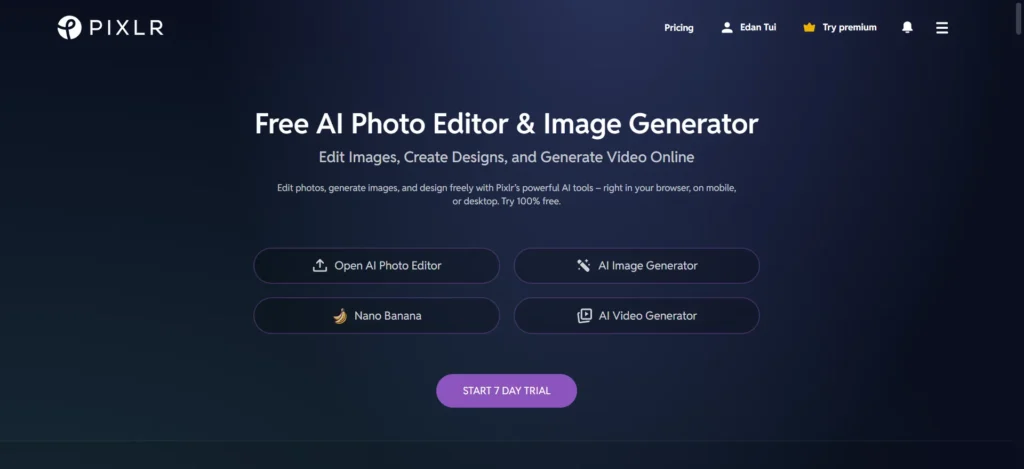
Pixlr has been a long-time favorite for free, web-based photo editing, and its AI tools make it better than ever. It offers powerful features like generative fill and an ai background remover right in your browser, no download required. The free version is supported by ads and may have limits on daily saves, but it’s one of the most capable free options available.
-
Features: AI Generative Fill, AI Background Remover, AI Object Removal, Photo Collage Maker.
-
Pricing: Free plan available; paid plans start at $2.39/month.
-
Pros: No software to install; very generous free features.
-
Cons: Ads on the free plan can be distracting; interface is less polished than others.
-
Usage Tip: Use the “Heal” tool to quickly remove small blemishes or distractions from your photos with a single brush stroke.
-
Privacy Note: A web-based tool that processes images on its servers.
-
Fotor – Best for Beginners

Fotor is another excellent AI image editor free online that balances ease of use with a strong set of AI features. It offers everything from a one-click photo enhancer to an AI image generator. It’s a great starting point for anyone new to AI editing, though the free version includes watermarks on some exports.
-
Features: AI Photo Enhancer, Background Remover, AI Skin Retouch, AI Image Generator.
-
Pricing: Free plan available; Pro plans start at $8.99/month.
-
Pros: Very simple and intuitive interface; good all-in-one tool for casual use.
-
Cons: Free plan has watermarks and ads; not as powerful for professional work.
-
Usage Tip: Use the “1-Tap Enhance” button to automatically adjust brightness, contrast, and saturation for a quick fix.
-
Privacy Note: A web-based tool that processes images on its servers.
-
Topaz Photo AI – Best for Technical Image Quality

Topaz Photo AI is not a creative editor; it’s a specialized tool for fixing technical problems. It uses AI to do three things exceptionally well: remove noise, sharpen blurry photos, and upscale low-resolution images. It’s a must-have for photographers who need the absolute best image quality, and it works entirely offline. Note that as of 2025, it is only available as a subscription .
-
Features: Denoise AI, Sharpen AI, Upscale AI, Face Recovery AI.
-
Pricing: Subscription only, starting at $199 per year.
-
Pros: World-class noise reduction and sharpening; works as a standalone app or plugin.
-
Cons: Expensive; only performs technical enhancements (no creative tools).
-
Usage Tip: Run old, low-resolution phone photos through Upscale AI to make them sharp enough for printing.
-
Privacy Note: A desktop application that processes all images locally and works completely offline.
-
Picsart – Best Mobile AI Editor

Picsart is a mobile-first editing powerhouse with a huge range of fun and creative AI tools. It’s perfect for social media users who want to create trendy edits, from AI-powered background changes to artistic filters and stickers. The free version is very capable, but is prepared for ads.
-
Features: AI Background and Object Remover, AI Replace, AI Enhance, huge library of filters and effects.
-
Pricing: Free plan available; paid plans start at $13/month.
-
Pros: Excellent for mobile editing; massive library of creative assets.
-
Cons: Free version has intrusive ads;it can feel overwhelming with so many options.
-
Usage Tip: Use the “AI Replace” feature to swap out your background with a custom scene generated from a text prompt.
-
Privacy Note: A mobile and web-based tool that processes images on its servers.
-
Lensa AI – Best for AI Avatars and Selfies

Lensa AI went viral for its “Magic Avatars,” which turn your selfies into stylized portraits in dozens of artistic styles. Beyond avatars, it’s also a solid selfie editor with one-tap “Magic Retouch” to smooth skin, remove blemishes, and enhance facial features. It’s a fun tool, but not intended for general-purpose photo editing.
-
Features: Magic Avatars, Magic Retouch, AI Face Retouch, Background Blur.
-
Pricing: Subscription starts at $4.99/month; Avatar packs are an additional purchase.
-
Pros: Creates amazing AI avatars; very easy-to-use retouching tools.
-
Cons: Avatar quality can be inconsistent; not a full-featured photo editor.
-
Usage Tip: For best Magic Avatar results, upload 10-20 selfies with a variety of expressions and backgrounds.
-
Privacy Note: A mobile app that uploads and processes your photos on its servers to train the AI.
-
Photoroom – Best for E-commerce Product Photos

Photoroom is a specialized tool designed for one thing: making product photos look amazing. Its AI background remover is one of the best available, creating clean cutouts perfect for sites like Amazon, Etsy, or Shopify. It also offers AI-generated backgrounds and templates to create professional product shots in seconds.
-
Features: AI Background Remover, AI Background Generator, Magic Eraser, Batch Mode editing.
-
Pricing: Free plan available (with watermark); Pro plans start at $12.99/month.
-
Pros: Best-in-class background removal; great for e-commerce sellers.
-
Cons: The free version adds a Photoroom watermark ; some users report poor customer support.
-
Usage Tip: Use “Batch Mode” (Pro feature) to remove the background from dozens of product photos at once.
-
Privacy Note: A mobile and web-based tool that processes images on its servers.
-
Remini – Best for Restoring Old Photos

Remini is a magical app that specializes in enhancing and restoring old or low-quality photos. With a single tap, its AI can unblur faces, repair scratches, and turn grainy, pixelated images into sharp, clear memories. It works best on portraits and faces, and the results can be truly astonishing.
-
Features: AI Photo Enhancer, Video Enhancer, Unblur, Repair Scratches.
-
Pricing: Free ad-supported plan; subscriptions start around $9.99/week.
-
Pros: Incredible at fixing blurry or old photos; extremely simple to use.
-
Cons: Not effective on landscapes or non-portrait photos; expensive weekly subscription.
-
Usage Tip: Scan an old, faded family photo with your phone and use Remini’s “Enhance” feature to see the faces come back to life.
-
Privacy Note: A mobile and web-based tool that processes images on its servers.
Comparison of the Best AI Image Editors
| Tool | Best For | Key AI Feature | Free? | Starting Price | Export Formats |
| Adobe Photoshop | Professionals | Generative Fill | No | $9.99/mo | All major |
| Luminar Neo | Creative Edits | Sky AI | No | $119 (once) | JPG, PNG, TIFF |
| Canva | Social Media | Magic Eraser | Yes | $15/mo | JPG, PNG, PDF |
| Pixlr | Quick Web Edits | Generative Fill | Yes | $2.39/mo | JPG, PNG, WebP |
| Fotor | Beginners | AI Enhancer | Yes | $8.99/mo | JPG, PNG |
| Topaz Photo AI | Image Quality | Denoise AI | No | $199/yr | JPG, PNG, DNG |
| Picsart | Mobile Editing | AI Replace | Yes | $13/mo | JPG, PNG, GIF |
| Lensa AI | Selfies & Avatars | Magic Avatars | No | $4.99/mo | JPG, PNG |
| Photoroom | Product Photos | BG Remover | Yes | $12.99/mo | JPG, PNG |
| Remini | Restoring Photos | AI Enhancer | Yes | $9.99/wk | JPG, PNG |
How I Tested These Tools
To create this guide, I spent time with each tool, using both free trials and paid subscriptions. I tested the same set of images across all platforms to compare key features like background removal speed, object erasing accuracy, and the quality of generative AI results. I focused on real-world use cases, such as cleaning up vacation photos, creating product shots, and restoring old family pictures. My evaluation is based on output quality, ease of use, performance, and overall value.
Top Picks: A Quick Summary
-
Best Overall: Luminar Neo. It offers the best balance of powerful creative AI, ease of use, and pricing flexibility with its one-time purchase option.
-
Best Free Option: Canva. Its free plan is incredibly generous and perfect for creating social media content, even if its top AI tools are paid.
-
Best for Mobile: Picsart. It has the richest feature set for on-the-go editing, with endless creative options for social media lovers.
-
Best for Professionals: Adobe Photoshop. It remains the undisputed champion for power, control, and professional-grade results.
Quick Tutorials: AI Editing in Action
Here’s how to perform three common tasks using a typical AI editor.
How to Remove an Unwanted Object
-
Upload your image to an editor like Canva or Picsart.
-
Select the “Magic Eraser” or “Object Remover” tool.
-
Use the brush to paint over the object you want to remove.
-
The AI will analyze the area and automatically fill in the background.
-
Adjust the brush size for more precise removal if needed.
-
Save and download your cleaned-up photo.
How to Replace a Sky in a Landscape
-
Open your photo in a desktop editor like Luminar Neo.
-
Navigate to the editing tools and select “Sky AI.”
-
The tool will automatically detect the existing sky.
-
Choose a new sky from the built-in library (e.g., “Blue Sky,” “Sunset”).
-
The AI will seamlessly blend the new sky and relight the foreground to match.
-
Export your dramatically improved landscape photo.
How to Upscale a Low-Resolution Image
-
Open your blurry or small image in a tool like Topaz Photo AI.
-
The “Autopilot” feature will analyze the image and suggest settings.
-
Select the “Upscale” tool.
-
Choose how much you want to enlarge the image (e.g., 2x, 4x).
-
The AI will intelligently add new pixels to increase detail and sharpness.
-
Save the new high-resolution version of your photo.
Frequently Asked Questions (FAQ)
-
What’s the easiest AI photo editor for beginners?
Canva is widely considered the easiest. Its template-based design and simple AI tools like “Magic Eraser” let you get great results without any technical knowledge.
-
Can AI edit photos offline for privacy?
Yes. Desktop applications like Luminar Neo and Topaz Photo AI process images directly on your computer, so your photos are never uploaded to the cloud.
-
Do I need to pay for “credits” to use AI editors?
Some tools, especially free ones, use a credit system for generative AI features. Each image you generate or edit uses one credit. Paid plans usually include a monthly allowance of credits.
-
Is AI editing better than manually using Photoshop?
For speed and convenience, yes. AI can do in seconds what might take an expert 30 minutes in Photoshop. However, for maximum control and precision, manual editing in Photoshop still offers superior results.
-
What is the difference between an AI enhancer and an AI editor?
An AI enhancer (like Remini or Topaz Photo AI) focuses on improving the technical quality of an image—sharpening, denoising, and upscaling. An AI editor provides creative tools for changing the content, like removing objects or replacing backgrounds.
-
Who owns copyright to AI-edited images?
Generally, you own the copyright to your original photo and the creative edits you make. However, images generated entirely from a text prompt may have complex ownership rules depending on the tool’s terms of service.
Conclusion
In 2026, AI image editors are no longer a novelty—they are essential productivity tools. Whether you are a professional photographer streamlining your workflow with Photoshop, a small business owner creating product shots with Photoroom, or just someone fixing old family photos with Remini, there is an AI tool that can save you time and unlock new creative possibilities. The key is to find the one that fits your specific needs and budget.
If you often showcase image edits in slides, Autoppt can help you turn your visuals into stunning presentations instantly with AI-generated templates.
Create worry-free presentations with AutoPPT . Turn your ideas into slides quickly—while keeping them 100% yours!
About AutoPPT: An easy use AI tool for students and professionals. Generate editable slides, customize designs, and focus on what matters—your unique ideas.

Autoppt: Generate presentations in 1 minute!
Start Free Trail Now